How to set up on-demand and scheduled triggers
A trigger decides when an automation runs. Every automation has exactly one trigger type, chosen in the Trigger section of the Advanced Builder — the one place automations are created and edited (the…
Written By Christopher Scaminaci
Last updated 3 days ago
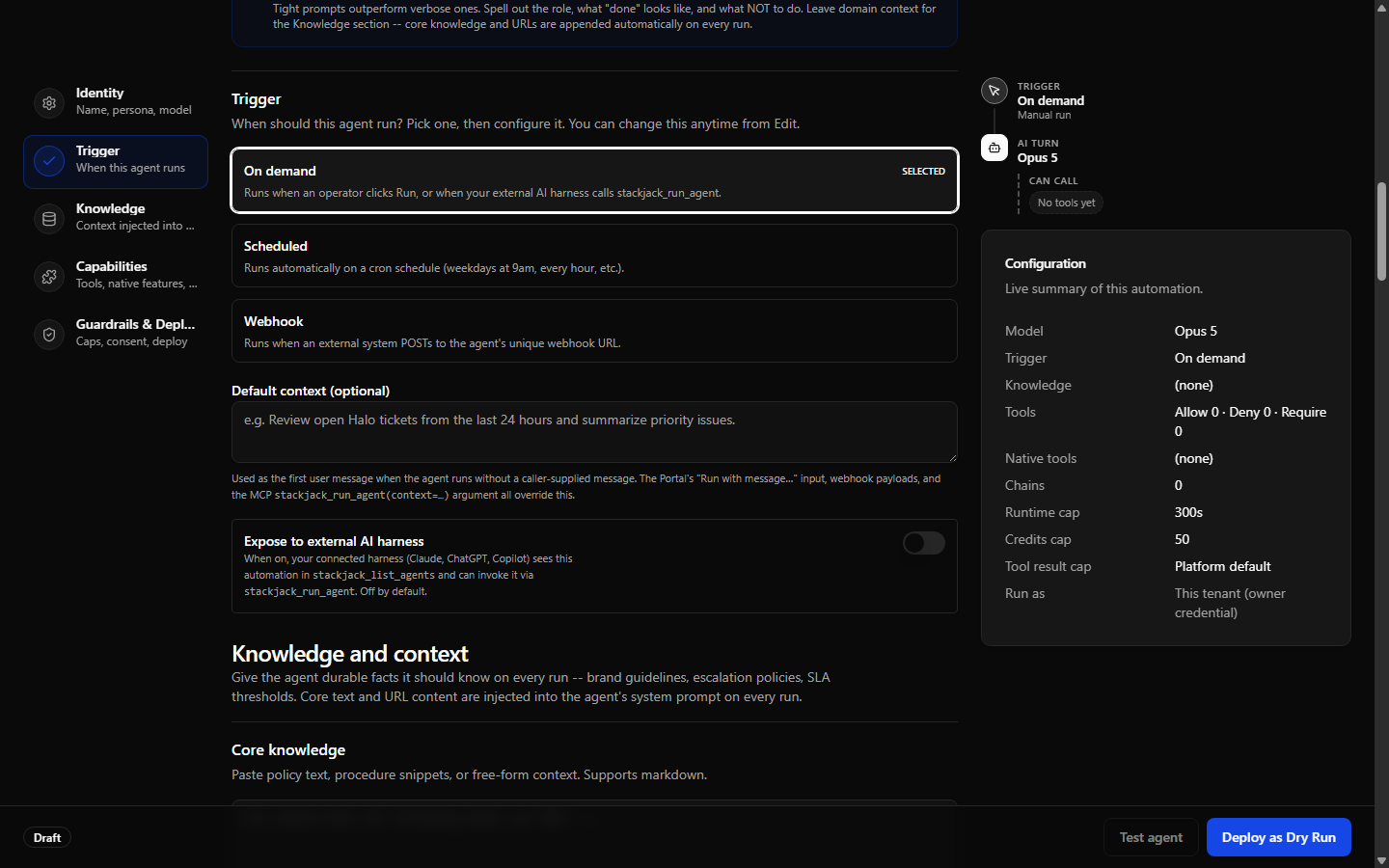
A trigger decides when an automation runs. Every automation has exactly one trigger type, chosen in the Trigger section of the Advanced Builder — the one place automations are created and edited (the older /automations/create and /automations/{id}/edit addresses now redirect there):
Switching an automation's trigger type resets the trigger-specific settings, so re-check them before saving.
On-demand automations
An on-demand automation runs when something explicitly asks it to. There are three ways that happens:
- Run now / Run with message… on the automation detail page.
- Your external AI assistant (an "MCP harness" — the AI tool you connected to StackJack, such as Claude, ChatGPT, or Copilot) calling the
stackjack_run_agentplatform tool — but only if you exposed the automation (see below). - Nothing else — on-demand automations never fire on their own.
Default context
The optional Default context text is used as the run's first user message whenever a run starts without a caller-supplied message. It is overridden by:
- the portal's Run with message… input,
- a message passed by your AI assistant via
stackjack_run_agent(context=…).
Exposing an automation to your AI assistant
The Expose to external AI harness switch (off by default) makes the automation visible to your connected AI assistant:
- When on, the assistant sees it in
stackjack_list_agentsand can start it withstackjack_run_agent. - Every trigger type can be exposed — on-demand, scheduled, and webhook automations alike. An off-schedule invocation of a scheduled or webhook automation records as a manual run (exactly like the portal's Run with message); it never disturbs the automation's own cron or webhook behavior.
- For webhook automations,
stackjack_list_agentsalso discloses the payload the automation expects (its payload mode, selected fields, and the optional Example payload you set on the webhook editor), so the assistant knows what to pass as context. That disclosure is the whole trigger configuration, so it now also carries any smart filter the webhook trigger holds — the questions and the conditions, as you wrote them. A smart filter judges inbound webhook deliveries only; it never applies to a run the assistant starts itself. - The detail page shows an Exposed to MCP harness badge while this is active.
Scheduled automations
Scheduled automations run on a cron schedule (cron is the standard 5-field syntax for describing recurring times: minute, hour, day of month, month, day of week). The schedule editor has two modes:
Quick mode
- Pick the days of the week the automation should run.
- Enter the time of day in 24-hour
HH:mmformat (for example09:00). This is local time in the timezone you select, and it sets the minute every run fires at. - Optionally pick more hours of the day from the hour strip, to run several times a day. Every selected hour fires at the same minute as the time above, so
08,12and21with a time of08:00means 8 am, noon and 9 pm. The hour set by the time box is always included, which is why its button is shown selected and can't be switched off — change the time box to move it. - Pick the timezone from the dropdown.
Quick mode synthesizes the cron expression for you.
Advanced mode (raw cron)
Enter a 5-field cron expression directly — for example 0 9 * * 1-5 (weekdays at 9 am). Use Advanced mode for schedules Quick mode can't express: ranges and steps (1-5, */2), named weekdays (mon-fri), specific dates, or different minutes at different hours. If an existing schedule is too complex for Quick mode to represent, the editor keeps it in Advanced mode rather than mangling it — and switching between the two modes never rewrites a schedule you didn't edit.
The preview panel
Below the editor, a live preview shows:
- validation errors, if the expression or time is invalid,
- the next fire times in UTC, so you can sanity-check the timezone math,
- the exact stored cron expression.
A mid-edit typo never silently destroys your schedule — the last valid schedule is preserved until you enter a new valid one.
Rules and behavior to know
- Firings must be more than 60 seconds apart. Schedules tighter than that are rejected.
- Busy work waits in the durable queue. A scheduled occurrence that cannot claim a slot immediately is saved as Queued. It starts automatically when capacity is available, or becomes
Skippedwithout using credits if its deadline passes first. For a schedule, that deadline is the shorter of the queue deadline (60 minutes by default, or this automation's own Queued-run patience) and half the interval until the next occurrence, so one occurrence cannot still be waiting when the next arrives. The half-interval clamp applies even to an automation set to wait indefinitely: patience buys a longer wait for a slot, never the right to outlive the next occurrence. - After a service restart, expect a queueing window. After a StackJack service restart, slots held by interrupted runs can take about an hour to free. A run queued in that window can expire as Skipped, with the reason on its run history entry. Give important automations a longer Queued-run patience. A scheduled occurrence is bounded twice over: its deadline is also clamped to half the interval until its next occurrence, so a short cadence expires sooner still.
- Runs do not overlap by default. A later occurrence waits if the same automation is already executing. You can opt that automation into concurrent runs in the builder, but each run still counts toward your organization's own concurrency limit and the shared platform pool. If your organization holds an Agent Runner plan, its limit is a hard ceiling enforced when the run is created — not a best-effort check. See Concurrency, Slots, and the Run Queue.
- Next run and registration state are visible on the automation detail page. The schedule-registration row on the detail page tells you authoritatively whether the schedule is registered with the background scheduler; if it reads Not registered, use Re-register schedule.
- Schedule drift banners appear when the registered schedule and the saved configuration disagree; active scheduled automations can usually be repaired with one click.
See Triggers and Execution Guarantees for the canonical queue, concurrency, expiry, cancellation, and restart contract.
What about approvals during a run?
Production runs are autonomous: allowed tools do not pause for per-call approval, so grant only what the automation genuinely needs. The Ask for approval again on production runs setting is saved with the automation, but production pausing is not available yet.
Supervised test runs are enabled independently. If an automation has Dry run mode and Live approval in test runs enabled, a destructive tool call can pause the test in AwaitingInput. An owner or admin can approve or deny it from the run detail page; approving executes that connector call for real against your live systems — a supervised test run is still a test run, but the approved call is not simulated. A destructive tool additionally requires this automation's destructive-action acknowledgment; without it, StackJack still blocks the call after you approve it. Denying it leaves it unexecuted and recorded as “would have called.” After 60 minutes without a response, cleanup must confirm the provider session stopped before it can fail and settle the run; uncertainty leaves the run paused for another cleanup attempt. See Run Lifecycle and Statuses for the complete behavior.
Approving also needs a free execution slot. If your organization is at its concurrency ceiling the decision is refused and the run stays Awaiting input, with the 60-minute deadline still running — see Run Detail and Concurrency, Slots, and the Run Queue.
Still need help? Ask the team