Knowledge Sources
Knowledge sources give an automation durable facts it should know on every run — brand guidelines, escalation policies, SLA thresholds, product references. Knowledge is merged into the automation's…
Written By Christopher Scaminaci
Last updated 3 days ago
Knowledge sources give an automation durable facts it should know on every run — brand guidelines, escalation policies, SLA thresholds, product references. Knowledge is merged into the automation's system prompt each time it runs, alongside the role you defined for it.
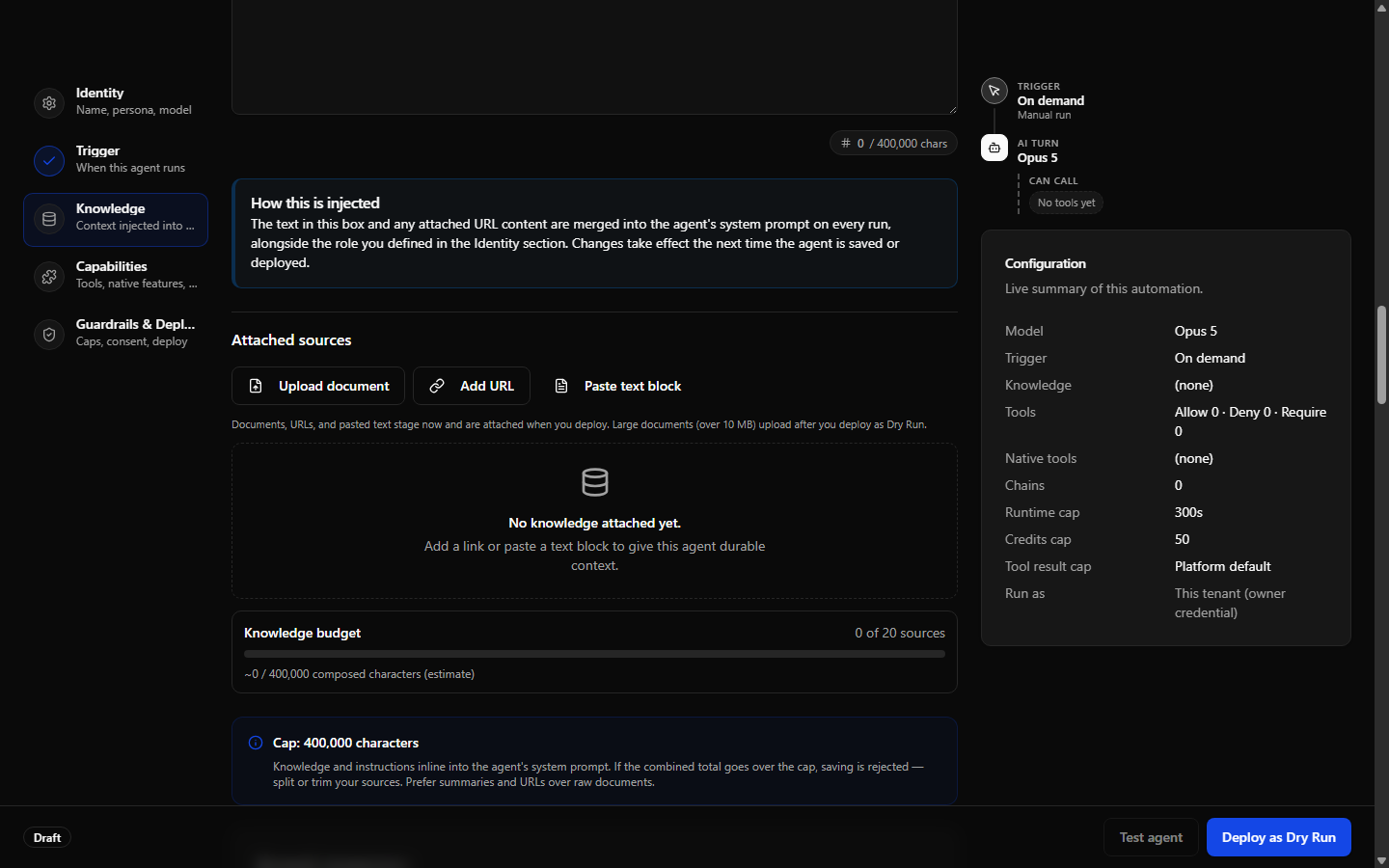
You manage knowledge in the Advanced Builder's Knowledge and context section — the third entry on the builder's section rail, listed there as Knowledge. Automations built through the guided conversational wizard can also arrive with knowledge already attached — you can refine it in the Builder afterwards.
Three kinds of knowledge work today — pasted text, URLs, and uploaded documents (PDF, Word, Excel, and PowerPoint, plus text files such as Markdown, CSV, JSON, and plain text — all extracted to plain text server-side). You can attach up to 20 knowledge sources of any mix. Uploads are covered in detail in Knowledge File Uploads.
Core knowledge
The Core knowledge box is a free-form text area (Markdown supported) for the automation's primary reference material.
- A live character counter tracks the size of the core-knowledge box as you type. Your instructions and all attached knowledge together share one composed system prompt capped at 400,000 characters.
- If that combined total goes over the cap, the automation is rejected when you save it — split or trim your sources, so prefer summaries and links over raw document dumps.
- Changes take effect the next time the automation is saved or deployed.
URL sources
Attach a web page and its extracted text becomes part of the automation's knowledge:
- In the Add knowledge card, click Add URL. You can add a URL at any time — if the automation doesn't exist server-side yet, the source stages in your draft and is attached automatically when you deploy.
- Enter a Label (for example "Pricing page") and the URL.
- Click Preview to fetch the page and see its title, estimated tokens, and how many characters of text were extracted — a quick sanity check before committing.
- Click Attach.
How URL content behaves: attaching the URL creates a saved text snapshot, which is then inlined into the automation's system prompt on every run. Each persisted URL row shows when it was last fetched and offers:
- Refresh — re-fetch the current page now, in place, without deleting and re-adding the source.
- Auto-refresh — choose Off (the initial setting), Daily, or Weekly. StackJack's hourly sweep re-fetches a due source on its chosen cadence. It republishes the automation only when extracted content changed; a fetch failure leaves the source due for a later retry.
Auto-refresh is available after the source has been persisted. A URL staged before the automation's first deploy becomes eligible once deployment attaches it. If changed page content grows beyond the 400,000-character composed-prompt ceiling, the saved source can update while the automation becomes Sync needed; trim the source and re-sync before relying on the new prompt.
Pasted text blocks
For policy snippets and short references that don't live at a URL:
- Click Paste text block.
- Enter a Label and paste the content.
- Click Attach.
Text blocks work immediately, even before the automation is first deployed. One restriction: the label "Core Knowledge" is reserved for the core knowledge box above — a text block with that label (in any capitalization) is rejected, and so is renaming a source to it.
Managing attached sources
The Attached sources list shows every knowledge source with its label and size.
Editing a source
To change a source without removing it, use its Edit action. The source stays the same source: it keeps its place in the list, and a URL keeps its auto-refresh setting. What you can change depends on the kind of source:
- Pasted text — its label and its text.
- URL — its label and its address. A new address is read as soon as you save, and the automation uses the new page's text from then on.
- Uploaded document — its label only. Replace the file by removing this source and adding the new file.
For a source already saved to the server, the change is saved when you click Save. If StackJack cannot save it — for example, the new address is not a web page it can read — the reason shows beside the editor, and the source keeps what it had before. A source that is still waiting for your first deploy changes in your draft and is attached with the new values when you deploy.
You can also edit a source from the chat assistant in the portal, or from your connected AI assistant — see Building and Maintaining Automations from Your AI Assistant. When the chat assistant saves, it checks each edit against the source as it is now: if someone changed the same part of that source somewhere else after you opened it, or removed the source, your change is not applied and the save tells you which source it was.
Removing a source
To remove one, use its delete action:
- For sources already saved to the server, the delete happens server-side first — if it fails, the source stays visible and you can retry, so the list never lies about what the automation will actually see.
What StackJack stores and sends
Knowledge is durable automation data, not transient builder context:
- Core knowledge and pasted text are stored in StackJack's database with their labels and metadata.
- URL sources retain the URL, the extracted text snapshot fetched at attach/refresh time, its label, size, and timestamps. Runs use that saved snapshot, not a live page fetch.
- Uploaded documents retain both the original file in blob storage and the extracted text plus metadata in StackJack's database. Keeping the original supports audit and re-extraction; runs consume the extracted text rather than re-reading the file.
The combined text is sent to the automation's Anthropic execution workspace in the system prompt on every run. Under BYOK, that means your tenant Anthropic workspace; under managed credentials, it means StackJack's execution workspace. Do not place passwords, API keys, or material the automation should not receive on every invocation in a knowledge source.
Deleting a saved source removes its database row so future runs no longer receive it. For an uploaded file, StackJack also deletes the stored original. If the stored file cannot be removed, contact support to have it deleted.
Knowledge is separate from Agent memory and Record runs for replay. Memory is an opt-in Anthropic store of notes the model writes across runs — see Automation memory for how to review, clear, redact, or erase it. Recording is a per-automation detail-page consent that can retain real tool-call fixtures and customer data. Removing a knowledge source does not clear either of those stores; manage them from the automation detail page. See Guardrails and Safety.
Good practice
- Keep knowledge focused: the whole knowledge set is injected on every run, and bigger prompts cost more tokens (and therefore credits) per run.
- Prefer a short summary plus a URL source over pasting a long document. Remember that adding a URL stores a snapshot of the page's text, taken when you add or refresh it — the automation reads that saved copy, never the live page, so a URL is not a way to keep an automation current by itself. Set auto-refresh, or refresh it by hand, when the page changes.
- Use manual Refresh for an immediate update, or opt a persisted URL into Daily/Weekly auto-refresh when the underlying page changes routinely.
- Keep secrets out of knowledge. Connector credentials belong in the execution-identity credential flow, where they are stored through Key Vault; see Execution Identity and Credentials.
Still need help? Ask the team