Knowledge File Uploads
You can upload documents directly as knowledge sources, so an automation can reference runbooks, exported reports, or policy files without you pasting their contents by hand. Uploads are extracted to…
Written By Christopher Scaminaci
Last updated 3 days ago
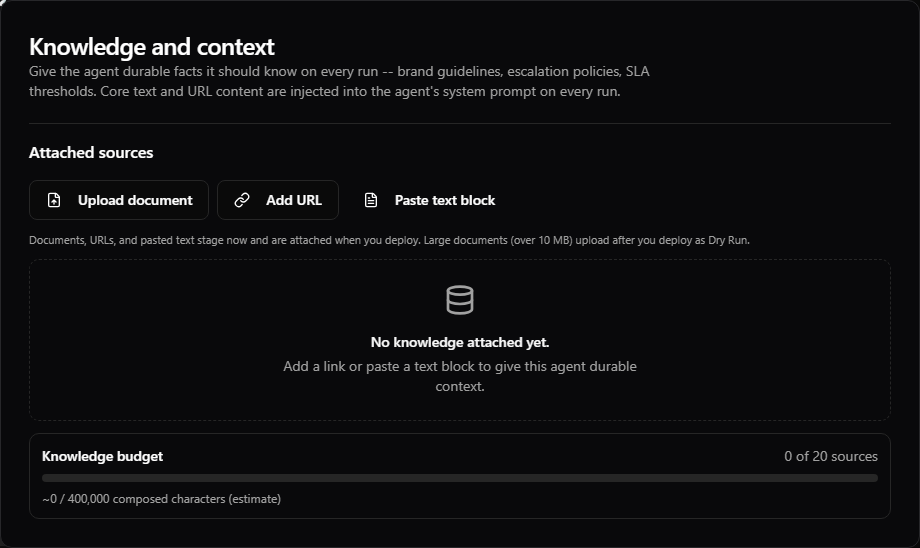
You can upload documents directly as knowledge sources, so an automation can reference runbooks, exported reports, or policy files without you pasting their contents by hand. Uploads are extracted to plain text and inlined into the automation's system prompt on every run — the same way pasted text blocks and URL sources are.
Uploading is done in the Advanced Builder's Knowledge and context section (the Knowledge entry on the builder's section rail), via the Upload document button in the Add knowledge card.
Supported file types
Because the automation runtime ingests text only, every upload is extracted to plain text server-side and inlined into the prompt:
- Documents: PDF, Word (
.docx), Excel (.xlsx), and PowerPoint (.pptx) — their text is extracted on upload. - Text files:
.txt,.md(Markdown),.csv,.tsv,.json,.ndjson,.log,.yaml/.yml,.xml— and other plain-text payloads. - Not supported: legacy binary Office (
.doc,.xls,.ppt), images, and archives. If a document can't be read — for example a password-protected PDF or a corrupt file — the upload is rejected with a message; copy the key content into a text block instead (see Knowledge Sources).
A text file that is really binary but renamed to a text extension (for example a PDF saved as .txt) is detected and rejected too — the text upload path only accepts genuine text.
Limits
- Up to 5 files per upload.
- Up to 50 MB per file.
- Up to 20 knowledge sources per automation, of any mix (text, URL, document), each with its own size limit.
- All of them count toward the automation's composed system-prompt cap of 400,000 characters (your instructions plus all knowledge) — the practical ceiling for a many-source automation. If the combined total goes over the cap, the add is rejected with guidance naming the largest sources, so prefer focused documents and summaries over raw dumps.
How to upload
- You can start attaching knowledge right away. Documents up to 10 MB, along with URLs and pasted text, stage in your draft before the automation exists and are attached automatically when you deploy. Documents larger than 10 MB can't be staged that way — deploy the automation first, then come back and upload them (the per-file limit at that point is 50 MB).
- Click Upload document.
- Select one or more supported documents or text files (drag-and-drop or browse) — see Supported file types above.
- Click Attach. Each file is uploaded, its text is extracted server-side, and it appears in the Attached sources list.
How uploaded content behaves
- The file's text is extracted once, at upload time, and then inlined into the automation's system prompt on every run — it is not re-read from the original file later. To update the content, delete the source and upload the new version.
- StackJack retains the original uploaded file in blob storage for audit/re-extraction and stores the extracted text plus label, content type, size, and timestamps in its database. The extracted text is sent to the automation's Anthropic execution workspace on every run. Under BYOK, that is your tenant workspace.
- Uploaded sources appear in the Attached sources list alongside text blocks and URLs, with their label and size. Removing one deletes the source row so the automation stops receiving it. StackJack also deletes the stored original. If the stored file cannot be removed, contact support to have it deleted.
- Extraction is not a secret-management boundary. Do not upload API keys, passwords, private keys, or documents whose entire text should not be supplied to every run. Put connector secrets into an automation credential instead.
Related pages
- Knowledge Sources — the full knowledge model (text blocks, URLs, uploads)
- Creating an Automation with the Advanced Builder
- Guardrails and Safety
Still need help? Ask the team