How Connectors Work
A connector is StackJack's link between your AI assistant and one of the MSP tools you already use — your PSA, RMM, documentation platform, or security product. Once a connector is configured, your AI…
Written By Christopher Scaminaci
Last updated 6 days ago
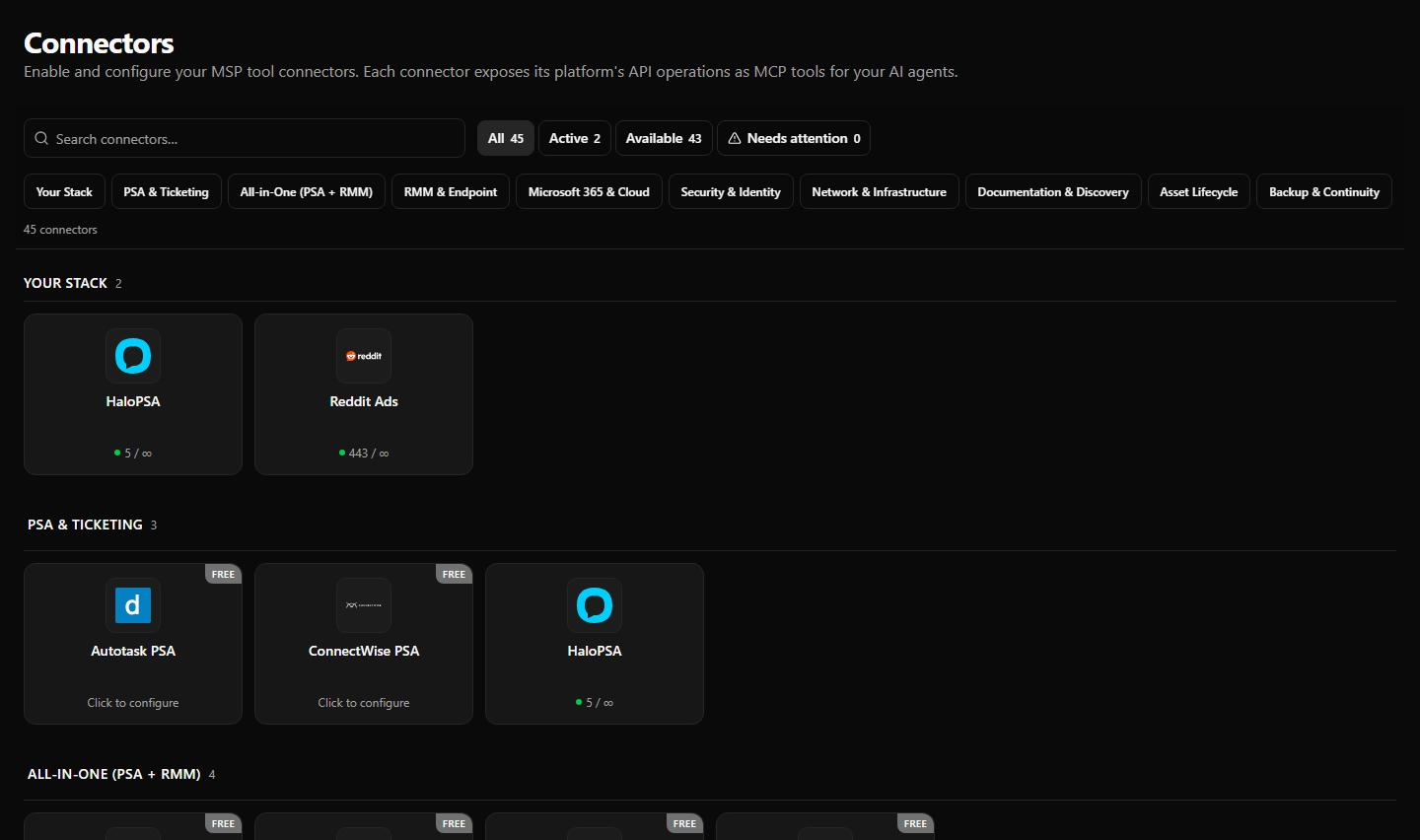
A connector is StackJack's link between your AI assistant and one of the MSP tools you already use — your PSA, RMM, documentation platform, or security product. Once a connector is configured, your AI assistant can call that product's API through StackJack's MCP tools (MCP is the Model Context Protocol — the open standard AI assistants use to call external tools).
Every connector StackJack supports today is listed below, with a link to its setup guide. Datto SaaS Protection appears in the Portal as coming soon and cannot currently be configured, so it is not in this list.
"Per-user sign-in available" means individual team members can connect with their own vendor identity instead of everyone sharing one credential — see Shared vs Per-User Credentials.
Several connections of one connector
Some products give one MSP credential that reaches every customer you manage. Many do not: you get one server, one site or one account per customer, and one set of credentials for each. StackJack lets an organization hold several named connections of the same connector, and your AI names the one it wants on each call.
You need this when the product has no partner console you can reach every customer through — Jamf Pro, CrowdStrike Falcon without Flight Control, Google Workspace without reseller access, Yeastar, Teramind, PRTG, Alloy Navigator, Datto EDR and Cisco Duo are the common ones. It is also useful whenever you simply have two of something: a second HaloPSA after an acquisition, a second Meraki organization, a second ESET console.
Adding one
- Open Connectors and find the connector's card.
- Open the card and choose Add connection.
- Give it a name and enter that customer's credentials.
Name a connection after the customer, not after the product. Your AI reads the names, so "Acme Manufacturing" tells it far more than "Jamf 2". When you add a second connection and the first one has no name yet, StackJack asks you to name that one too, so the AI is never choosing between "Jamf Pro" and "Acme Manufacturing".
The first connection you add for a connector becomes the default. You can change which one is the default from the same list.
How your AI picks one
Every tool of a connector that has two or more connections gains an optional connection argument, and the tool's own description lists the names. Your AI passes a connection's name and the call runs against that customer:
"In Acme Manufacturing, which Macs are still on macOS 14?"
Omit it and the call runs against the default connection. You can also ask your AI to list what is available — it has a tool that reports every connection of every connector, which one is the default, and whether each is healthy.
Pinning an endpoint to one connection
If you would rather an AI could not reach past one customer at all, pin the endpoint. Open Endpoints, edit the client, and set that connector's Pinned connections choice. A pinned client uses its pinned connection for every call, and naming any other connection is refused rather than quietly redirected. That makes a pin the right tool when you hand one customer their own AI access.
Endpoints without a pin stay unpinned and keep the full choice.
Billing
Connections do not change what you pay. A connector has one subscription, one plan and one monthly call limit, shared by all of its connections. Ten Jamf Pro connections are one Jamf Pro subscription, and calls to all ten count against the same monthly allowance.
Removing one
Removing a connection deletes its credentials, and the team members' personal sign-ins that belonged to it go with it. N-able N-central is the one exception: a member's own N-central token is theirs, so it stays until they remove it from their personal sign-ins. If you remove the connection that is currently the default, the oldest remaining working connection of that connector becomes the new default, so the connector keeps working for anything that does not name a connection. Any endpoint pinned to the connection you removed becomes unpinned. The connector itself stays connected until you remove its last connection — see Disconnecting a Connector.
Where your credentials are stored
Connector credentials are the most sensitive data you give StackJack, so they are handled with a strict storage model:
- Secrets live in Azure Key Vault, not in StackJack's database. When you save a connector, the API keys and secrets you enter are written to a dedicated secret in Azure Key Vault. StackJack's database stores only a reference to that secret — never the secret itself.
- Every tenant's credentials are isolated. Each secret is scoped to your tenant (and, for per-user connections, to the individual team member). One tenant's credentials are never used to serve another tenant's requests.
- Secrets are never displayed again. After you save, the portal never echoes a secret back — not in the configure dialog, not in any admin view. When you edit a connected card, secret fields are blank; you either enter a new value or, for some connectors, leave the field blank to keep the current value.
- Deleting is real. Disconnecting a connector deletes the stored secret from Key Vault (see Disconnecting a Connector).
A few vendors ask for an identifier for the integration itself as well as the credential that grants access to your data. For ConnectWise PSA and ConnectWise Automate, StackJack supplies its own ConnectWise client ID, so you enter only your own credentials; a company that already uses its own client ID can enter it under Advanced. Autotask requires an API integration code alongside its API-only user. You enter both values in the same configure dialog, and StackJack stores them together as one credential — see each connector's guide for where to obtain them.
Who can manage connectors
Connector management is role-gated:
The life of a connector
A connector moves through a simple lifecycle, each stage covered by a chapter in this section:
- Activate — configure credentials and get a plan for the connector (Activating a Connector).
- Connect — walk through the setup guide and configure dialog (Connecting a Connector); StackJack validates the credentials at save (Validation at Save).
- Stay healthy — StackJack continuously re-checks credentials in the background and tells you when something breaks (Connector Health & Auto-Disable).
- Maintain — rotate credentials when needed (Updating & Rotating Credentials).
- Disconnect — remove the credentials when you no longer need the connector (Disconnecting a Connector).
Still need help? Ask the team