Connect Liongard
Liongard is an MSP documentation and attack-surface monitoring platform — it discovers, documents, and audits customer environments (Microsoft 365, Active Directory, networks, devices) via automated…
Written By Christopher Scaminaci
Last updated 6 days ago
Liongard is an MSP documentation and attack-surface monitoring platform — it discovers, documents, and audits customer environments (Microsoft 365, Active Directory, networks, devices) via automated inspectors. Connecting it to StackJack lets your AI assistant work with your Liongard instance through MCP tools — the standardized tool calls (Model Context Protocol) that AI harnesses like Claude or ChatGPT use to act on your behalf. Once connected, your AI can query environments, systems, detections, timelines, metrics, and dataprints, and (on paid plans) manage environments, agents, and more.
The Liongard tool family uses the liongard_ prefix and spans both Liongard's current v2 API and its older v1 API — v1-backed tools carry a _v1 suffix (for example liongard_list_systems_v1). Read and query tools are available on the Free plan; write tools require a Pro or Business plan for the Liongard connector. See the generated Liongard tool reference for the current inventory, input schemas, plan tiers, and safety notes.
Before you begin
You will need:
- A StackJack role that can manage connectors: tenant Owner, co-owner, or Administrator. Plain Members cannot add or edit connector credentials.
- A Liongard login you can generate API keys with — use a dedicated service-account user, not a personal admin. The API key inherits that user's role: if the person leaves or their role changes, your integration changes with them.
- To know your Liongard region — the subdomain in the URL you use to sign in (
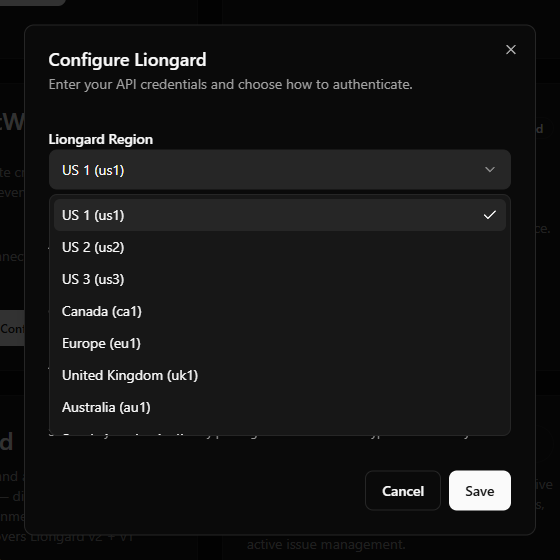
us1,us2,us3,ca1,eu1,uk1,au1, orsa1).
Role determines reach. The key pair can read and modify everything the generating user's role allows. For full write coverage on Pro-tier tools (environment writes, agent management), the underlying user needs a Liongard Tenant-Admin role or higher. For a read-mostly integration, a lower role is safer.
Step 1: Generate an API key pair in Liongard
- Sign in to Liongard at
https://<your-region>.app.liongard.comas the dedicated service-account user. - Open your profile menu, choose Account Settings, and select the Access Tokens tab.
- Click Generate New Token and choose an expiration that matches your credential-rotation policy.
- Copy the Access Key ID and the Access Key Secret. The secret is shown only once — store it securely. Treat the pair like a password: anyone holding it can access every environment allowed by that user's Liongard role.
Liongard lets you issue access tokens for 30, 90, 180, or 360 days, or choose Unlimited. Prefer a bounded expiration, record the expiry date in your credential-management system, and update StackJack before it expires. Liongard does not expose the chosen expiry to StackJack.
Step 2: Add the key pair in StackJack
- In the StackJack portal, go to Connectors.
- Find the Liongard card. Click How To Connect for the guided walkthrough of Step 1, or go straight to Configure.
- In the configuration dialog:
- Click Save.
What happens when you save
- Your key pair is stored encrypted in Azure Key Vault — it is never written to the StackJack database.
- StackJack immediately tests the keys with a lightweight environment-count call against your Liongard instance. If the test fails, the credentials are still saved and you'll see a "saved, but validation failed" message with the reason so you can correct it.
- A Free subscription for the Liongard connector is created automatically, so the Free-tier tools appear in your AI harness right away. Upgrade from the connector card whenever you're ready — current pricing is shown in the portal at checkout.
Health monitoring
StackJack periodically re-validates the connection. If it fails definitively three times in a row (for example, because the key pair was deleted in Liongard), the connector is automatically disabled and the tenant owner is emailed. The connector card then shows the error details along with Re-enable and Update Credentials buttons. (A card that is failing validation but not yet disabled shows a Re-test button instead.)
What your AI can do once connected
- Free plan: read and query tools — environments and environment groups, agents, asset inventory (identities and devices), metrics and dataprint evaluation, timeline queries and detections, plus v1 reads (inspectors, systems, launchpoints, users, roles, alerts, tags, notes, service providers, the audit log) and v1 report downloads.
- Pro / Business plans: everything in Free, plus write tools — create/update/delete environments and environment groups (including bulk variants), manage agents and generate agent installers, update devices and identities, acknowledge alerts, manage launchpoints and webhooks, manage v1 users, tags, and notes, and generate reports.
- Business is the same tool set as Pro — the difference is the monthly usage allowance only. Liongard has no per-user OAuth flow, so per-user attribution is not available on any tier.
Usage notes worth passing to whoever drives the AI:
- v1 vs v2 tools. Tools ending in
_v1hit Liongard's older v1 API; the rest use v2. They complement each other — some data (reports, inspectors, launchpoints) only exists on v1. - Report downloads are time-limited links.
liongard_generate_report_v1starts report generation asynchronously; once complete,liongard_download_report_v1uploads the binary to StackJack's storage and returns a read-only download link. The link's lifetime is chosen per call (default 60 minutes, between 5 minutes and 24 hours), and reports are capped at 100 MB. - Usage caps. Each connector subscription has a monthly tool-call allowance (currently 100 calls on Free, 5,000 on Pro, 50,000 on Business per billing cycle). There is no per-minute burst limit on your MCP calls — the monthly cap is the enforcement point. Your usage bar is on the connector card and Dashboard.
Warning — the webhook signing-key tool is global. The
liongard_generate_webhook_signing_keytool rotates your Liongard instance's global webhook signing key. That immediately invalidates signature verification for all existing webhook receivers you have pointed at Liongard — not just StackJack-related ones. Only use it deliberately, e.g. when rotating a compromised key.
Rate limits toward Liongard
Liongard enforces 2,000 requests per 5 minutes globally per API key, plus a stricter 100 requests per minute on its metrics-evaluation endpoint. StackJack honors both automatically, backing off when Liongard asks it to — long analytics sessions may pace themselves rather than fail.
Troubleshooting
Per-user access
Liongard does not support per-user sign-in through StackJack — the connector uses one shared key pair for the whole tenant, and all tool calls run as the Liongard user who generated the keys. (Per-user connector credentials are only available for HaloPSA, NinjaOne, and N-able N-central.)
Disconnecting
Disconnect on the Liongard card deletes the stored key pair from Key Vault, and Liongard calls on that connection stop working immediately. Where the card holds several connections, the others keep working and the connector stays connected until you remove the last one.
Whether Liongard's tools disappear from your AI's tool list is a separate choice rather than an automatic consequence. On the last connection of a Free connector the dialog offers to remove them, with the box selected by default. On a paid connector the tools stay listed and billing continues: disconnecting does not cancel a paid subscription. The plan controls only appear while the connector is connected, so end the plan before disconnecting. On a paid connector that button reads Manage on Billing and opens this connector's removal dialog on the Billing page; a legacy website subscription still reads Cancel Plan. If you've already disconnected, save your credentials again to bring the plan controls back, then end the plan. See Disconnecting a Connector for what else a removal reaches.
If you're disconnecting for security reasons, also delete the key pair in Liongard so the old values are dead everywhere.
Liongard tools
liongard_ · 77 tools · Free 44 · Pro 33
Environments
Environment Groups
Agents
Asset Inventory — Identities
Asset Inventory — Devices
Metrics
Timeline & Detections
Dataprints
Webhooks
Inspectors (v1)
Systems (v1)
Launchpoints (v1)
Users (v1)
Service Providers (v1)
Reports (v1)
Alerts (v1)
Tags (v1)
Notes (v1)
Roles (v1)
Audit Log (v1)
Still need help? Ask the team