The Automations Page
The Automations page is the single home for the whole feature. A rail on the left switches between five sections:
Written By Christopher Scaminaci
Last updated 6 days ago
The Automations page is the single home for the whole feature. A rail on the left switches between five sections:
You can deep-link to any section — the selected tab is mirrored into the URL (for example /automations?tab=templates), so bookmarks and shared links open the right section. Older links to /credits and /automations/templates redirect here automatically.
If you have an Agent Runner plan but no Anthropic key
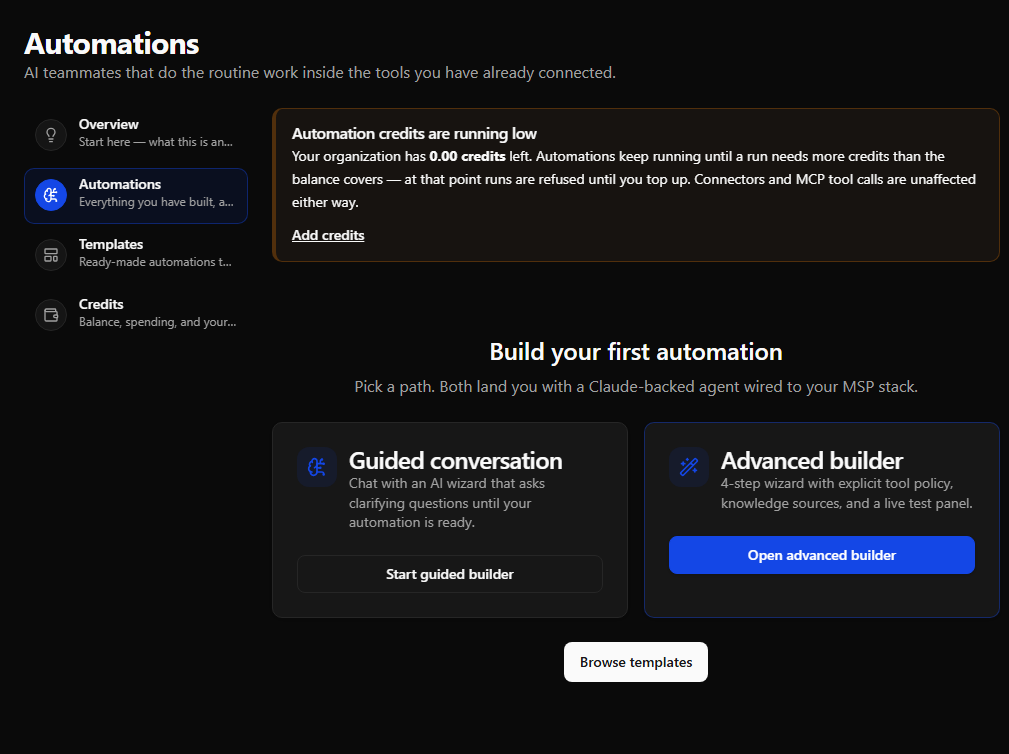
One alert is page-scoped rather than belonging to any tab: it sits above the tab body on every tab. It appears only for an organization that holds an active Agent Runner plan and has no Anthropic key on file, and it reads:
Enroll your Anthropic key to activate your flat-fee plan
Your Agent Runner plan is active, but runs are still billing credits because your organization has no Anthropic key on file. Add one and your runs bill Anthropic directly instead.
It links to Add your Anthropic key, which opens the Credits tab. Nothing is blocked while it is showing — that is the substance of it: an Agent Runner plan with no key still runs on StackJack credits. It is a reminder that you are not yet getting what the plan is for. Everyone else sees nothing here, and so does anyone whose plan or key status could not be read.
The first-visit tour
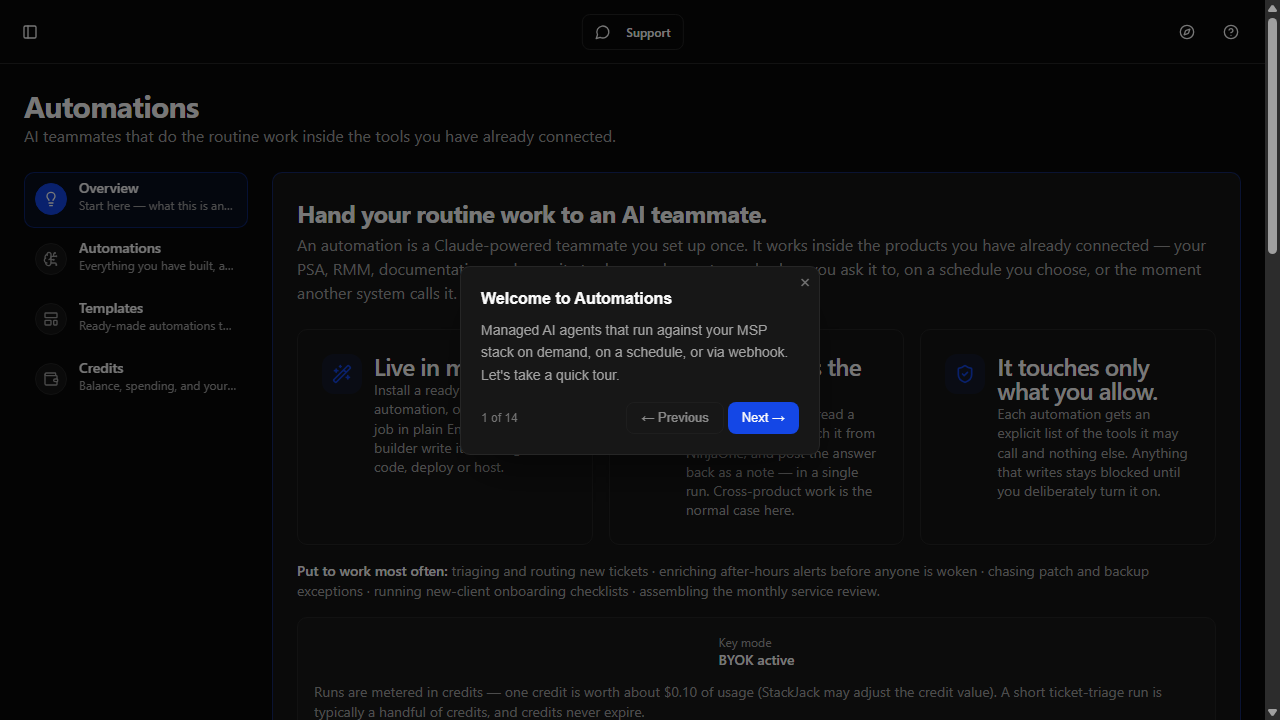
The first time you open the page, you land on Overview and a short guided tour starts: it walks through the rail, the Overview primer, the Automations list and its filters, the template gallery, and the Credits tab. Steps that do not apply yet (for example, list filters when you have no automations) are skipped. When the tour closes, it tells you it can be replayed via the help icon in the top bar. On later visits the page opens straight to the Automations tab.
Overview tab
Overview is the landing page for the whole feature, which is why it leads the rail. It reads top to bottom in four parts:
- A hero card summarizes the value of automations and shows your credit balance. A Buy credits button jumps to the Credits tab — unless your tenant uses BYOK (your own Anthropic key), in which case a "BYOK active" badge appears instead.
- A status strip shows where you currently stand: how many automations you have (and how many of those are switched on), how many run unattended (scheduled or webhook-triggered), and your credit balance. If the balance cannot be read just now, the tile says so rather than showing a zero.
- Pick a starting point is the call to action: the three ways to build an automation — install a template, describe the job in plain English, or build it yourself — each with its own button. Once you have at least one automation this card becomes Build another one and adds a shortcut into your list.
- How automations work is the reference card, with five panels: what you are actually setting up, when it runs, what it costs, what keeps it safe, and where the results land.
Automations tab
This is your working list.
When you have no automations yet
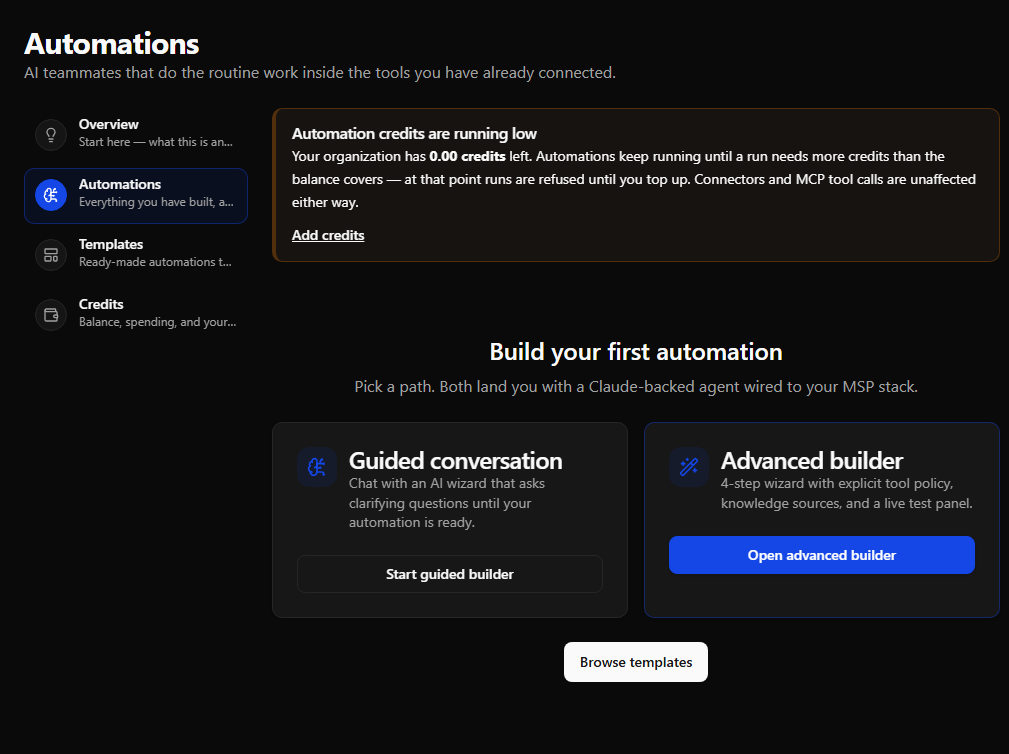
You see a "Build your first automation" state with two mode cards and a template link:
- Guided conversation — chat with an AI wizard that asks clarifying questions until your automation is ready. Opens the guided wizard.
- Advanced builder — a five-section builder with explicit tool policy, knowledge sources, and a live test panel. Opens the advanced builder.
- Browse templates — switches to the Templates tab. See Using Automation Templates.
When you have automations
Once you have at least one automation, the two build-mode cards give way to an operational list. A header row leads, followed by a search-and-sort row, the filter chips, and your automation cards.
Header. The left side shows Your automations and a count (for example, "3 automations"). The right side has three actions:
- Refresh — re-loads the list and each card's latest run.
- Advanced builder — opens the advanced builder for a new automation.
- New automation — opens the guided wizard.
Search and sort. A search box filters the grid by name or description as you type. A Sort dropdown orders the cards by Last run (most recently run first — the default), Name, or Newest (most recently created first).
Filters. Chips with live counts let you narrow the grid: All, Active, Inactive, Orphaned, and Sync issues. "Sync issues" collects every automation that needs attention to stay in sync (sync needed, schedule drift, or orphaned). If your search and filters match nothing, the grid is replaced with a "No automations match" message and a Clear search & filters button.
Automation cards. Each card leads with the operational picture: the automation's name and description, an Active / Inactive health pill, and — when something needs attention — one or more warning pills. Below that sit the trigger type and Claude model, and a footer showing the last run (its status badge and how long ago it ran, or "No runs yet") with a Runs shortcut straight to the run history.
Click any card (or press Enter/Space with the card focused) to open that automation's detail page.
If the list fails to load, an error banner explains why (for example, the automation service being unreachable) with a Try again button.
Templates tab
The gallery of installable automation templates, with category filters and risk badges. Covered in full in Using Automation Templates.
Credits tab
The tab leads with a Concurrency card, above the balance: three tiles — Concurrency slots (how many runs your organization may have going at once, captioned with where that number came from), In use now, and Waiting for a slot — plus a line giving your average and peak concurrency over the last 30 days. Full detail in Concurrency, Slots, and the Run Queue.
Below it: your credit balance, credit pack purchases, BYOK key management (for eligible accounts), and recent transactions. Covered in Credits and BYOK.
Foundry tab
Connect your organization's own Azure subscription (Azure AI Foundry) so an automation can run its model calls on Claude or another model there, billed by Azure, with no StackJack credits for the model usage. Set up on your subscription or paste a key, check each deployment's health, and remove the connection. Full detail in Running automations on your Azure Foundry.
Still need help? Ask the team