Creating an Automation with the Guided Wizard
The guided wizard is a chat: you describe what you want to automate in plain language, and an AI interviewer asks clarifying questions until it has everything needed to build the automation for you.…
Written By Christopher Scaminaci
Last updated 3 days ago
The guided wizard is a chat: you describe what you want to automate in plain language, and an AI interviewer asks clarifying questions until it has everything needed to build the automation for you. It is the best path when you know the outcome you want but not the prompt, tools, or configuration to get there.
Open it from the Guided conversation card on the Automations tab, or go directly to /automations/wizard.
The page is a two-pane workspace: the conversation on the left, and a live requirements panel on the right that tracks everything the automation still needs (it stacks below the chat on narrow screens). You never have to guess how close you are — the panel shows it, updates as you talk, and you can jump into the advanced builder at any point without losing progress. See The live requirements panel below.
The wizard can call your real connectors while you talk to it. To check that a tool returns what your task needs, the interviewer may run a read-only tool against your live systems mid-conversation. Those calls use your real credentials, count against your connector usage like any other call, and their results are read by the AI that is designing the automation. Write and destructive tools are never run during an interview. See Live tool tests during the interview.
Step by step
Accept the consent notice. Before any chat, a "Consent required" card explains that managed automation agents execute on your behalf against your connected MSP tools, and that some actions may be destructive (close tickets, disable users, delete records). Click I understand — continue to proceed. Nothing else on the page is usable until you do.
The wizard's "Consent required" card with the "I understand — continue" button.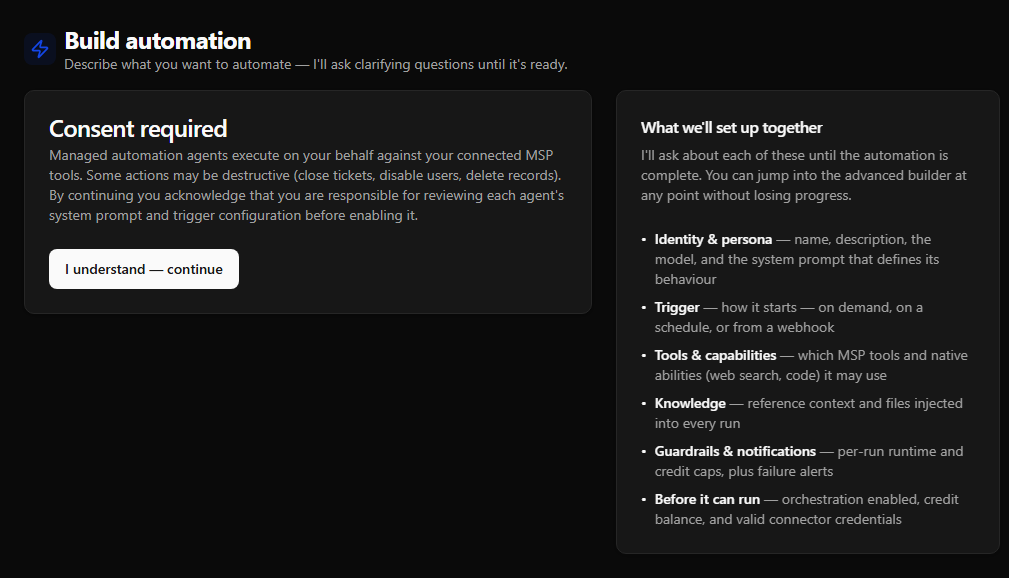
Describe what you want to automate in the message box and click Send. Be as specific as you can — which product, which records, what outcome.
Answer the wizard's questions. The wizard replies conversationally and often presents a structured question card. Question cards come in three forms:
- Option buttons — click one to answer.
- Freeform — type your answer.
- Tool picker — a full tool selector embedded in the chat, grouped by connector and category, when the wizard needs you to choose exactly which tools the automation may use. Tick your tools and click the Apply N tools button (it counts your selection live).
You are never boxed in by the options: every question card also lets you type a freeform "something else" answer instead.
Watch the draft build up. A collapsible Draft configuration panel above the chat shows everything the wizard has settled so far — name, model, trigger, tools, guardrails, and any advanced fields (tool policy, tool chains, native tools, knowledge, MCP exposure). While the interview is incomplete, the panel's Create automation button is disabled and shows exactly what is still missing ("Still need: …").
Create the automation when the interview is complete. The wizard's server decides when the interview is complete — the Create button only unlocks once every required piece of the configuration has been gathered and validated. When it is ready, a green "Ready to create" message appears with a Create automation button. Two other states can appear instead:
- "Almost ready — Still need: …" — the interview is not complete; the list tells you exactly which fields to settle in your next answers.
- "Wizard blocked" (red) — the wizard determined it cannot build what you asked for with your tenant's available tools (for example, a capability your connectors don't provide). Adjust the request or your connectors.
Or force it: "Enough, build it." Once the wizard has anything workable, an Enough, build it button appears in the page header. Clicking it tells the wizard to finalize with what it has; if the result passes the server's completeness check, the automation is created immediately. Use this when you're confident the wizard already has what matters and you don't want to answer more questions.
Choose what to do from the success screen. The wizard confirms that the new automation is live and offers View automation or Test it now; it does not navigate away automatically. Test it now opens the automation with its Run with message panel open; nothing runs until you send a message. The automation is created in dry-run mode, with consent already recorded from step 1. Read-only connector calls execute against live data; write and destructive calls stay visible but are blocked before the connector and recorded for review. Test it, then promote it to production when you're satisfied — see the promotion flow in Creating an Automation with the Advanced Builder.
The live requirements panel
The panel on the right is the wizard's scoreboard. It tracks the same dimensions the advanced builder walks through, so the wizard is never a lighter-weight path that produces an under-configured automation — its "ready to create" gate is exactly the builder's "ready to deploy" gate.
- Before your first message, it shows a "What we'll set up together" checklist so you know up front what the interview covers: identity and persona, trigger, tools and capabilities, knowledge, guardrails and notifications, and the prerequisites that must be in place before the automation can run.
- Once the conversation starts, it flips to a live Requirements checklist, computed on the server after every turn and grouped by those same dimensions. A badge at the top summarizes where you stand: "N to resolve", "N before it runs", or "All set".
Each row carries an icon that tells you what kind of item it is:
Fixable rows link straight to the fix: a missing connector credential links to Connectors, a low credit balance links to Add credits, and a piece that's easier to set in the step-by-step builder offers a Fix in builder hand-off.
"Created, but it won't run yet"
Some prerequisites are warnings, not blockers — they never stop you creating the automation, but the automation stays idle until you resolve them:
- Automations must not be turned off for your workspace. Automations are generally enabled by default; if StackJack turned them off, StackJack support restores availability.
- Your credit balance must cover the per-run reservation (unless you're on BYOK).
- Every connector a chosen tool needs must resolve a valid credential for the automation's execution identity. A dedicated automation credential takes priority; otherwise StackJack checks the selected run-as member and the configured fallback posture. See Execution Identity and Credentials.
When you reach the "ready to create" state, a summary repeats any of these that still apply, so you never leave believing a created-but-idle automation is fully live. Resolve them from the linked pages, and the automation runs on its next trigger.
Jump into the advanced builder — nothing is lost
At any point you can move what the wizard has assembled into the advanced builder: click Open in advanced builder at the bottom of the requirements panel, or a Fix in builder link on a specific row. Everything gathered so far — name, description, model, system prompt, trigger, tools, native abilities, knowledge, and guardrails — carries across, and the builder opens on the section that owns the first thing still needing attention. Your wizard conversation is left intact, so you can navigate back and keep talking if you change your mind.
The wizard does not ask you to choose a run-as member or enroll a dedicated service-account credential. Before creation or promotion, open Capabilities in the advanced builder to review Run as, strict/shared fallback, and any per-automation connector credentials. If an authorized owner/administrator leaves run-as unbound, the automation uses owner fallback; a granted ordinary member must bind to self.
Live tool tests during the interview
The wizard can try a tool before it commits the automation to using it. When it decides a test would help, it runs the tool against your tenant's real connectors and reads the result, then carries on with the interview from what the data actually looks like.
What that means for you:
- The calls are real. They use your live connector credentials, return your live data, and count against that connector's usage and monthly call limit exactly as any other call does. Reading is not free of consequence: the result is shown to the AI that is designing your automation, and a read can return sensitive data.
- Only read-only tools are tested. The wizard cannot run a write or destructive tool during an interview. If a task needs one, the wizard adds it to the automation's tool policy instead, and it first runs when the automation itself does.
- Only tools you are entitled to. A tool outside your plan, your connector subscriptions, or your available catalog is refused without being run. So is a tool outside your own tool access: a Member or an Administrator whose tools are limited on the Team or Roles page can test only the tools they can use themselves, while an owner can test any tool in the catalog. A limited person can still add such a tool to the automation's tool policy; the wizard just does not run it for them.
- There is a limit per interview. After about ten tests, the wizard is told to stop testing and finish designing from what it has learned. It says so in the conversation and carries on.
- You do not approve each test. There is no per-test confirmation. If you do not want live calls made while you design, use the advanced builder instead, which does not test tools.
- Testing is optional. The wizard can complete an interview without running any test, and a refused or failed test is reported as an ordinary message rather than an error.
Costs: wizard messages are metered
Each message you send to the wizard is itself a small AI operation. It runs on StackJack's Anthropic account and is billed in StackJack credits, or, when your organization has its own Anthropic key on file, it runs on your key and Anthropic bills your account. The footer under the chat shows, live:
Credits spent this session
Remaining balance
Cache hits (prompt tokens served from cache, which reduce cost)
Managed-key tenants: each wizard model call reserves and settles StackJack credits. If the balance runs out mid-conversation, the wizard stops with
SJ-WIZ-CREDITS-EXHAUSTED; top up on the Credits tab and continue.One message you send is not always one model call. When the wizard runs a live tool test, it makes another model call to read the result and carry on. A message that triggers two or three tests therefore costs more than a message that triggers none, and the footer's session total is what to watch.
At most three StackJack-billed builder requests run at once per organization. Wizard messages and AI Assist suggestions that run on StackJack credits share the limit, across every tab and every person in your organization. A fourth request is not started and nothing is charged; the wizard says so in one sentence, and you can send the message again when one of the others finishes. Requests that run on your own Anthropic key are not counted and are not limited by it.
With your own Anthropic key on file: wizard turns deduct zero StackJack credits and are billed to your Anthropic account, the same way your automation runs are. If your key cannot be read when you send a message, the turn is refused with a message asking you to re-enter it — StackJack does not fall back to its own key. A message you have sent keeps running to its answer even if you close the tab, and that answer is billed to your key.
Your session survives a refresh
The conversation, draft, and progress are saved in your browser, scoped to you and your tenant. If you refresh or come back later on the same browser, the wizard picks up where you left off. On a shared workstation, another user signing in sees their own wizard state, never yours.
- Start over (below the chat) wipes the session and begins a fresh interview.
- Retry appears if a message fails due to a network or server error — it re-sends the exact failed request without losing your place.
- A long answer is still delivered. If the connection drops while the wizard is answering, the page keeps checking for the answer for up to fifteen minutes and shows it when it is ready, instead of asking you to send the message again (which would be charged a second time). If you refresh the page while it is waiting, it picks the same answer up after the refresh. Retry appears straight away only when StackJack could not be reached at all, because then nothing was started.
If creation fails
Create errors are shown with a support code so you can quote them to support:
Still need help? Ask the team