Creating an Automation with the Advanced Builder
The advanced builder is the single place you both create and edit an automation. It gives you full control over every part — identity and model, trigger, knowledge, capabilities, and guardrails — with…
Written By Christopher Scaminaci
Last updated 3 days ago
The advanced builder is the single place you both create and edit an automation. It gives you full control over every part — identity and model, trigger, knowledge, capabilities, and guardrails — with a live test panel so you can chat with your automation before turning it loose. It follows a deliberately safe lifecycle: you first deploy the automation in dry-run mode, where connector writes are blocked, test it, and only then promote it to production to enable write-capable tools normally. The one thing dry run does not block is a destructive call you approve yourself in a supervised test run: approving executes it for real against your live systems.
Open it from the Advanced builder card on the Automations tab, or go directly to /automations/builder. To change an existing automation, use the Edit button on its detail page — it opens the same builder with that automation loaded (see Editing an Automation). There is no separate "quick" create or edit form; the builder is the one canonical surface, so nothing you configure here is missing when you come back to edit.
How the builder works
- A section rail on the left shows the five sections — Identity, Trigger, Knowledge, Capabilities, and Guardrails & Deploy — with each section's completion state. All five render in one scroll column, and you can jump between them freely — nothing forces a strict order.
- A persistent action bar along the bottom shows the automation's lifecycle status (Draft, Dry run, or Live) and an unsaved-changes indicator on the left, with Test agent, Save, and the primary action button on the right. There is no Back/Next pager — the rail and scrolling handle navigation. The primary button changes with the lifecycle: Deploy as Dry Run → Promote to Production → View agent (a Return to dry run button appears once the automation is live).
- Your draft autosaves in the browser on every change, scoped to you and your tenant. Close the tab, come back later, and your work is still there — including unsaved edits to an already-deployed automation.
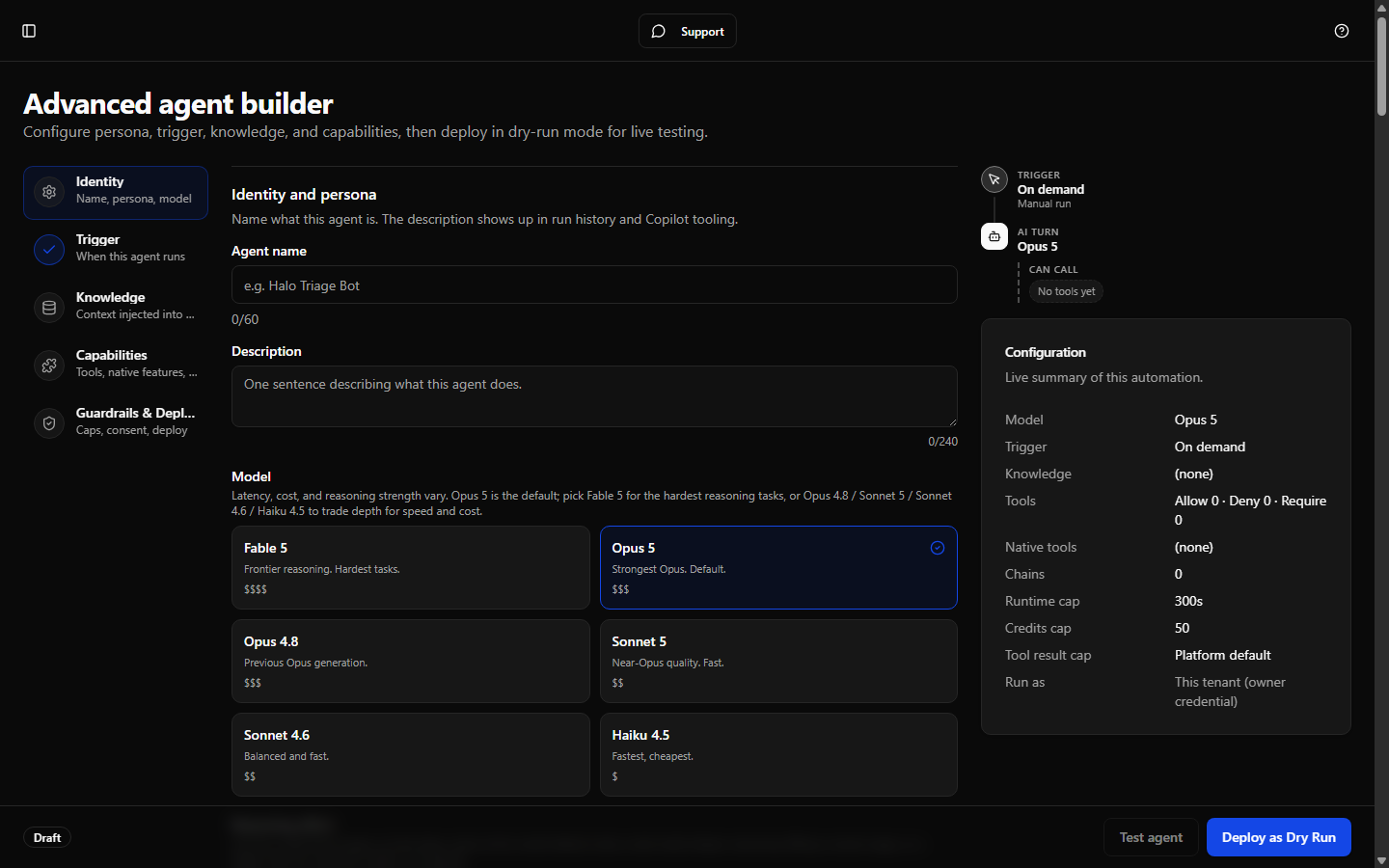
Identity
Name, description, model, and the system prompt.
- Agent name (up to 60 characters) and Description (up to 240 characters) — both fields show a live character counter.
- Model: pick one of the nine model tiles: Fable 5.1 (
claude-fable-5-1, \(\)) for frontier reasoning on the hardest tasks; Fable 5 (claude-fable-5, \(\)), the previous Fable generation; Opus 5.5 (claude-opus-5-5, $$$), the newest Opus, which bills at a lower credit rate than Opus 5 (a fifth less per input and output token) with cached reads at two-fifths of Opus 5's; Opus 5 (claude-opus-5, $$$), the default; Opus 4.8 (claude-opus-4-8, $$$), an older Opus generation; Sonnet 5.5 (claude-sonnet-5-5, $$), the newest Sonnet, for near-Opus quality at Sonnet speed at the same credit rate as Sonnet 5; Sonnet 5 (claude-sonnet-5, $$), the previous Sonnet generation; Sonnet 4.6 (claude-sonnet-4-6, \() for balanced depth, speed, and cost; and Haiku 4.5 (`claude-haiku-4-5`, $) for the fastest, cheapest, high-volume work. **Model choice is not plan-gated**: every tile is selectable on any plan that has Automations enabled; the difference shows up in what each run costs you. Sonnet 5 bills at a **lower credit rate than Sonnet 4.6** (about a third less per token) as well as reasoning more deeply, so prefer Sonnet 5 unless you have a reason to stay on 4.6; the two share a `\)tile because the tiers are coarse. Fable 5.1 and Fable 5 share the\(\)` tile and bill the same per input and output token; Fable 5.1's cached reads cost a quarter of Fable 5's, so a long-running automation that re-reads the same instructions and knowledge on every run costs less on 5.1. The dollar signs are relative cost tiers, not prices; you pay in credits based on actual usage (or on your own Anthropic bill under BYOK). If an automation was saved with a model that has since been retired (for example Opus 4.7), it shows as a "Retired option" tile. StackJack keeps sending that saved choice, and billing for it, rather than silently substituting another model. That is not a promise the model still works: Anthropic decides how long it serves a retired model, and once it stops, runs on that automation fail until you pick a current tile. Move a retired selection forward rather than leaving it in place. - Reasoning effort: leave this at model default, or choose Low, Medium, High, Extra high, or Max. The levels on offer depend on the model: Haiku 4.5 takes no effort setting, and Sonnet 4.6 takes every level except Extra high. If you switch to a model that does not take the level you picked, the level goes back to model default. Higher effort can deepen the model's work, but it commonly increases the number of steps. Every step re-reads the automation's context, so a high-effort automation with many tools or large knowledge sources can cost noticeably more. The guided wizard can set it too.
- System prompt / Role — the agent's standing instructions (markdown supported). Two helpers are built in:
- AI Assist — opens a dialog that generates a suggested prompt from your draft so far; accept, regenerate, or cancel.
- A live character counter shows how long your prompt is.
AI Assist always uses StackJack's platform Anthropic key. Managed-key tenants pay StackJack credits for the suggestion call; BYOK tenants receive a zero-credit suggestion and the call does not touch their tenant Anthropic key. Actual automation runs follow the tenant's configured execution key mode.
A live configuration preview in the right sidecar reflects your choices as you type.
Trigger
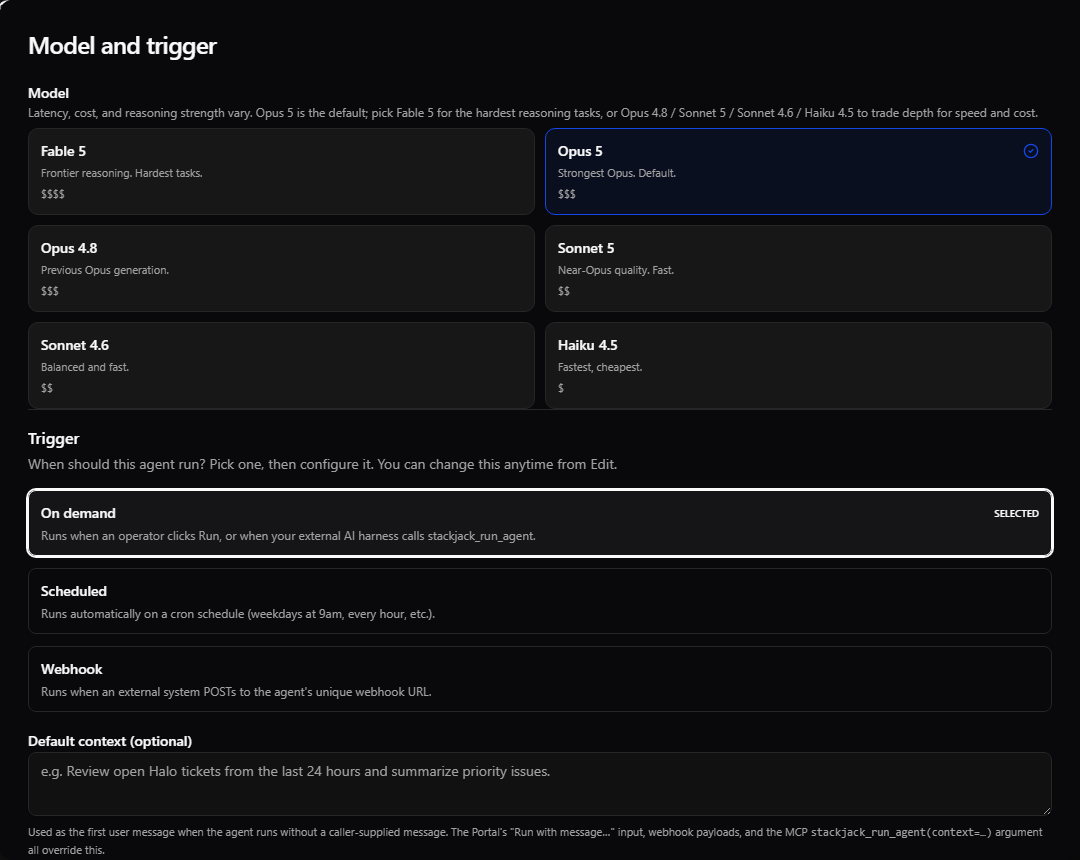
Choose one of the three trigger types; each shows its own editor:
- On demand — optionally set a Default context: the first message the agent receives when a run starts without a caller-supplied message. You can also flip Expose to external AI harness, which lets your connected AI assistant discover and run this automation through StackJack's MCP tools (off by default; the same switch is available on the scheduled and webhook editors, where a harness invocation runs the automation off-cadence as a manual run).
- Scheduled — build the schedule in Quick mode (days of the week + time + timezone) or switch to Advanced for a raw 5-field cron expression. A live preview shows validation results and the next fire times. Consecutive firings must be more than 60 seconds apart — for higher-frequency triggering, use a webhook instead.
- Webhook — choose a Payload mode: None (discard the request body), Full context (pass the body to the agent verbatim), or Selected fields (extract specific dotted JSON paths). Optionally set a maximum payload size (server default 32 KB, hard ceiling 64 KB). The webhook URL and secrets are issued after the automation is created.
Knowledge and context
Durable context merged into the agent's system prompt on every run — brand guidelines, escalation policies, SLA thresholds, and similar reference material.
- Core knowledge — a free-text area (markdown supported) with a live character counter. Your instructions and all of an automation's knowledge share one composed system prompt, capped at 400,000 characters; if the combined total goes over the cap the automation is rejected when you save it, so split or trim your sources and prefer summaries over raw document dumps.
- Add URL — attach a web page as a knowledge source. The dialog takes a label and URL and offers a Preview that shows the page title, estimated tokens, and extracted character count before you attach. The fetched text snapshot is injected into the prompt on every run. You can add a URL at any time; before the automation exists it stages in your draft and is attached when you deploy. Each persisted URL shows when it was last fetched, has a Refresh action, and can opt into Daily or Weekly auto-refresh (initially Off).
- Paste text block — add a labeled block of text as a source. The label "Core Knowledge" is reserved for the core knowledge field and can't be used.
- Attached sources — the list of everything attached, with per-source delete.
- Upload document — attach PDF, Word (
.docx), Excel (.xlsx), PowerPoint (.pptx), and text files (.txt,.md,.csv,.json,.log,.yaml/.yml,.xml, and similar) as knowledge sources; each file's text is extracted server-side and inlined into the prompt on every run. Up to 5 files at a time, 50 MB each. Documents up to 10 MB stage in your draft before the automation exists and attach when you deploy; documents over 10 MB need the automation to exist first, so deploy it and then upload them. Legacy binary Office (.doc,.xls,.ppt) isn't supported — paste that content as a text block. See Knowledge File Uploads. - Agent memory — opt in to a private Anthropic memory store for this automation. Memory mounts read-only when dry-run mode is on, for a StackJack-admin diagnostic run, or whenever the run is configured so it can pause for destructive approval. Otherwise it mounts read/write. Test agent starts an on-demand run; the test label itself does not make memory read-only, so testing a promoted, non-pausable automation can read and write durable memory. You can review, redact, clear, or hard-delete the store from the detail page. The notes live in Anthropic's workspace; StackJack stores the mapping and mutation audit needed to manage them. A BYOK workspace change can leave the old store mismatched until it is migrated.
Knowledge, memory, and recorded test fixtures are different retention surfaces. Knowledge text and uploaded files are deliberately stored for repeated use; memory may contain model-written customer context; and fixture recording can retain real tool arguments and responses. See Knowledge Sources, Knowledge File Uploads, and Guardrails and Safety.
Capabilities
What the agent is allowed to do.
Anthropic native tools
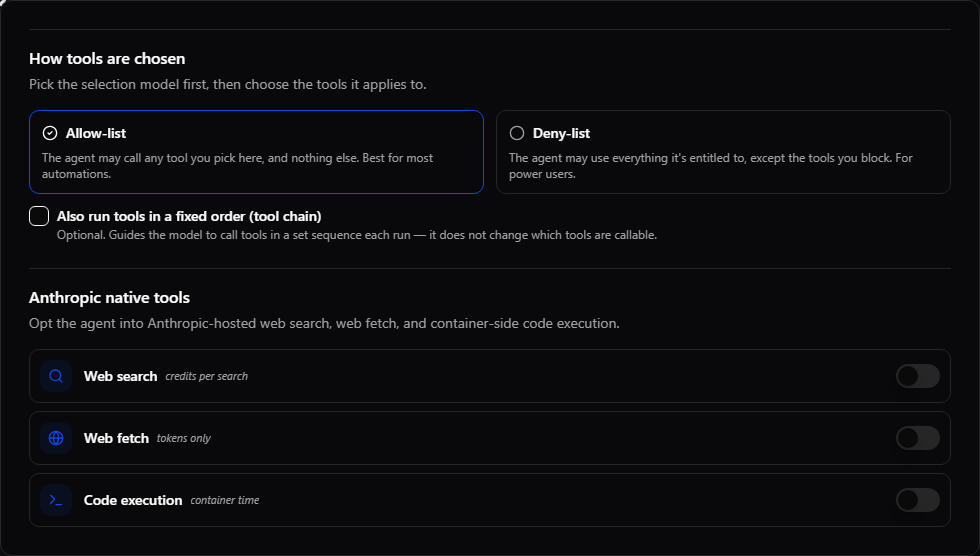
Three optional Anthropic-hosted capabilities, shown as compact square tiles (each with a toggle; hover a tile for its full description):
Native tools run on Anthropic's side and are available to every plan — they are never plan-gated.
Custom (MCP) tools
You choose how the agent's tool access is defined first, then which tools it applies to:
- Allow-list mode (the default, best for most automations) — the agent may call only the tools you pick, and nothing else. Everything you don't select is denied. Pick tools with the search-first picker (search, connector/category groups, read/write chips, and presets like All Tools, My Plan, Read Only, Write). Your current selection is always shown as a chip strip.
- Deny-list mode (for power users) — the agent may use everything it's entitled to except the tools you block. Reach for this when it's easier to describe the few things an agent must never touch than to enumerate everything it may. It is also by far the most expensive shape an automation can have, and the builder says so when you pick it — see Why is my agent expensive? below.
As you select tools, the section shows a live estimate of how much context the automation will carry on every step and roughly what that costs per run, with a warning once the set gets large.
Tools above your current plan for a connector appear as locked rows that show the plan they require, so you can see what an upgrade would unlock instead of them silently disappearing. Locked tools can't be selected.
Execution identity and connector credentials
Run as decides whose connector identity and access context StackJack uses when a tool has no credential dedicated to this automation. Owner and administrator builders can bind an eligible member without escalating above their own role; an ordinary member with automation-builder access is locked to self. Leaving the selection at This tenant (owner credential) keeps the owner-fallback behavior.
For a selected member, strict mode is the safe default: a connector without that member's personal credential fails closed. Mirror this member's connectors opts into shared/owner fallback for missing credentials. After the automation exists, Agent credentials lets an authorized builder enroll a service-account credential bound to this automation and connector. That binding is authoritative: a missing or disabled binding fails closed instead of falling through to the member or owner credential. A binding merely marked invalid is different — that badge is a health warning, and StackJack still uses the credential rather than falling through. Re-enroll or revoke it deliberately; do not enable shared fallback to mask a broken dedicated binding. See Execution Identity and Credentials.
Required tools (optional) — from your callable set, pick tools the agent should use at least once per run (for example, always post its findings back to a ticket). This remains advisory: StackJack instructs the model and records a warning when a completed run skipped one, but it does not block or fail the run. Because required tools come from the already-callable set, marking one required never grants access.
Tool chains
Optional ordered sequences of tools the agent should follow each run ("first look up the company, then list its tickets, then post a summary"). Turn on the tool-chain option, add a chain, name it, add tool steps from the picker, and drag to reorder; a live preview shows the sequence. The current Portal chain editor authors advisory chains: they steer the model but do not force a tool to run, change the run status, or grant access. Stronger required/ordered chain contracts exist in the runtime contract, but this builder does not expose those enforcement choices. A chained tool must still be in the callable set.
Fixed start and finish steps
Fixed steps are steps you declare that always run around the model's work, in the order you set, on every run.
- Before the run steps execute top-to-bottom and can bind their results into the initial context. Choose whether a failed step aborts before the Anthropic session starts or continues without that answer. A step before the run can be one of four kinds:
- A step that reads calls one of the automation's read-only tools and saves its answer under a name you choose.
- A step that changes something calls a tool that changes something in your systems — for example, adding a note to a ticket. It runs on every run. Acknowledge autonomous destructive actions, the approval you tick when you review and deploy, lists every step like this one, and a step whose tool StackJack marks as destructive does not run until it is ticked. On some connectors that mark covers creating or updating a record, such as adding a ticket note, not only deleting something, so if the list shows a step, tick it. Adding, removing or moving any of these steps — or any step above one of them — asks for that tick again. An automation can have at most 3 of these steps. Its values can only be a fixed value, a value from what triggered the run, or an option a decision step picked; saving the answer is optional.
- A decision step asks a specialist service for a short, typed judgement (see Decision steps below).
- An AI thinking step asks an AI model a question instead of calling a tool: you write the instructions, choose the model and what it reads, and set the longest answer and how long to wait (at most 8,192 tokens and 120 seconds). Its answer is saved under a name, and later steps can use it. Each run pays for it the same way it pays for the automation's own model calls, unless its AI provider is Your Azure Foundry, which Azure bills. On an automation that runs on your Azure Foundry, every AI thinking step runs there too: set its AI provider to Your Azure Foundry (see AI thinking steps on Your Azure Foundry).
- After the run (Verify) steps run once the run reaches a terminal outcome, and that covers more than an ordinary completion. A run that was refused before its AI session even started, one you interrupted, one cancelled while queued, and one that failed for another reason can all reach the same terminal seam and run their Verify steps. Every Verify step is a read-only connector call, so it consumes that connector's usage allowance even on a run that did no other connector work — do not read "no AI session" as "no connector calls".
- Verify never changes the outcome. Its results are recorded as their own rows; they cannot rewrite the run's status, send anything back to the finished model, or alter its billing. Verify steps must be read-only, and StackJack refuses to save a write step in the Verify phase.
- Not every finished run has Verify rows. Some runs end without reaching the Verify steps, and a Verify attempt that fails is not reported on the run. Treat missing Verify rows as "not recorded", not as proof the check ran and passed.
After the run, a step can only read. StackJack refuses to save a step that changes something, a decision step or an AI thinking step in the After-the-run half.
A tool step must name one of the automation's callable tools. The runtime currently allows up to 10 issued steps per phase, with a 60-second phase budget and a 15-second deadline per tool step; a decision step or an AI thinking step declares its own deadline, and the phase budget grows to hold those deadlines up to a 300-second ceiling. Tool steps consume connector usage but no Anthropic credits. An AI thinking step is the exception: it uses no connector allowance, and its tokens are charged with the run's own model calls. An abort before the session starts consumes no Anthropic credits unless an AI thinking step before it already answered. Steps that read use a separate read-only automation execution credential. If that credential is missing, those steps are recorded as skipped and the automation must be re-synced before they can execute. Steps that change something use their own separate credential, limited to the tools those steps name. If that one is missing, the steps are refused, never skipped, and your failure choice decides whether the run stops.
Decision steps
A decision step is a Before-the-run step that asks a specialist service for a short, typed judgement instead of calling a connector tool. Use it when the run should branch or stop on something a rule cannot express — "is this alert actually urgent", "which queue does this belong in", "how severe is this".
- Where it can go. Before the run only. StackJack refuses to save a decision step in the After-the-run (Verify) half, at save time and again at run time. If you add one there by mistake, the whole automation refuses to save until you remove that step with its own Remove button.
- What you write. A provider and a model (
typesafeandjev-latest; both are required), then one or more questions. Each question is one of three types: Noul (a yes/no judgement), Choice (pick one of your listed options) or Score (place it on a scale you name). Each question also carries the instructions the service reads. - Required confidence. A decision step can carry optional rules that must ALL pass before the answer is used. If a rule fails, the step behaves like any other failed step: your on failure choice decides whether the run stops before it starts or continues with the answer marked as not used. The model is told that the decision was not used — it is never shown a value that did not clear your bar.
- It asks once per run. The answer is recorded before anything uses it, so a run that is restarted or recovered replays the answer it already had rather than asking again. Two attempts of the same run can never act on two different judgements.
- Feeding a write step. Only a Choice answer can supply an argument to a write step, and only the picked option itself — never free text the service wrote. Because that lets an AI answer choose the object of a write, the destructive-action acknowledgment lists such a step explicitly and your tick clears whenever that list changes.
- When it cannot run. If the feature is switched off for your deployment, your organization has not turned on fast decisions, you are out of credits, the request is malformed, or no key is available, the step is recorded as skipped: it costs the phase nothing, binds nothing, and the run continues. Those are different from a service timeout or outage, which follows your on failure choice like any other step.
- What the run records. The run detail shows what each decision step judged. Read it as the judgement the service returned, not as a verdict about your systems.
A decision step names no connector tool, so the read-only rule above does not apply to it, and it uses none of your connector allowance. What it does use is described in Credits, Fast Decisions, and Your Own TypeSafe Key.
Proposed tool grants
After dry-run tests, Proposed tool grants reviews blocked tool attempts from the 10 most recent runs. It shows the latest arguments and attempt count, but only tools that are currently known, entitled, and grantable can be selected. Applying a proposal updates the normal allow/deny policy through the same server authorization as any edit; it never bypasses plan entitlement. Approving a destructive tool requires the destructive-action acknowledgment, then you should run the automation again in dry run. Proposals are evidence to review, not automatic grants.
Guardrails & Deploy
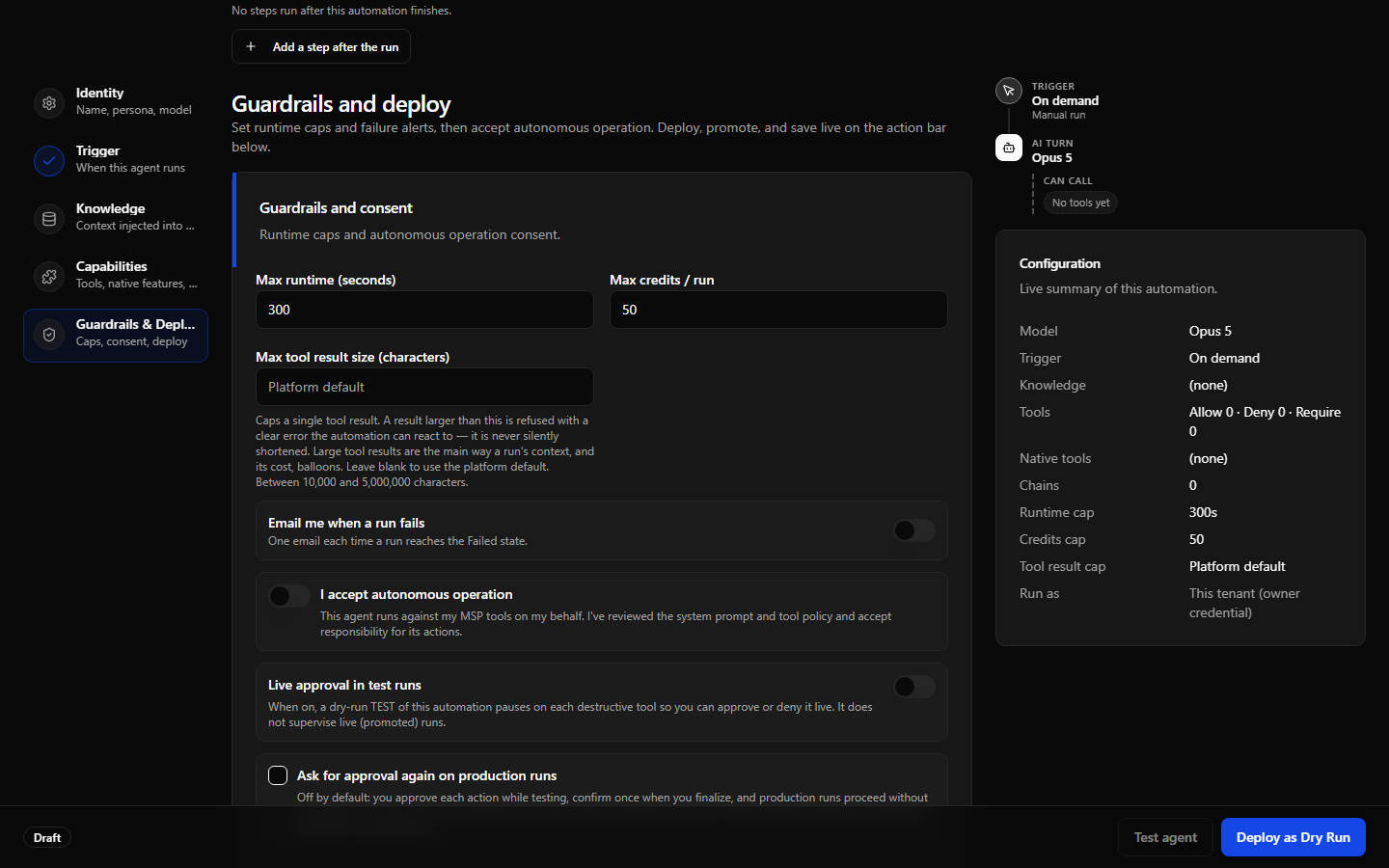
The final section sets your run guardrails and records consent. A configuration preview in the right sidecar shows read-only summary cards that recap everything — identity, knowledge, capabilities, and guardrails — updated continuously as you build.
This section carries the run and data guardrails:
- Max runtime (seconds) and Max credits / run — per-run caps. The credit cap does not govern BYOK runs because StackJack credit reservation is skipped there; use runtime to bound those runs.
- Max tool result size — an optional 10,000–5,000,000 character ceiling on one result. An oversized result is refused with a clear tool error that the automation can react to; it is never silently truncated. Blank uses the platform ceiling.
- Queued-run patience (minutes) — when every concurrency slot is busy, a triggered run waits in the queue instead of being dropped; this is how long it waits before it gives up and is marked Skipped. Unlike the tool-result ceiling above, blank and
0mean different things here: blank inherits the platform default of 60 minutes, a positive number replaces it, and0waits indefinitely — the run starts whenever a slot frees, however long that takes. Scheduled automations are the one exception, in the control's own words: "a queued run always expires before its own next scheduled time, so one schedule can never start two runs" — and that half-cadence limit applies even when patience is set to0. Editing this needs an Agent Runner plan; without one the row is read-only, and it shows this automation's own stored value rather than the default, so you may legitimately see "Waits indefinitely for a free slot" there. An attempt to change it without a plan is ignored rather than refused, so your other edits still save normally. This setting is not captured by version snapshots (see Version History and Rollback) and is not copied to a staging copy (see The Automation Detail Page). See Concurrency, Slots, and the Run Queue. - Outbound network access — what this automation's execution environment may reach on the internet: Platform default (StackJack's MCP server only), No network access, Only the hosts I list (up to 50 hostnames, one per line, name only), or Unrestricted. Its StackJack tools work in every choice. Allow package managers, offered under the two narrow choices, adds the public package registries for an automation that runs code. A saved change replaces the execution environment and applies to sessions that start afterwards, so tightening it does not narrow a run already under way. See Guardrails and Safety.
- Return raw tool responses — available after the automation exists. Off follows any organization response-shaping rules; on opts this automation out and passes connector responses through unchanged. This switch cannot turn shaping on and has no effect when the organization has no shaping rules enabled. If the saved setting cannot be read, the builder disables the control and preserves it on save.
- Email me when a run fails — sends to the address you provide for eligible failure-like terminal outcomes: Failed, Timed out, Out of credits, or an interruption after execution began. Digest and daily caps apply; see Automation Failure Notifications.
- Active — for an existing automation, turning this off pauses future launches after you save.
- Allow this automation to run more than once at a time — off by default. With it off, one live run of the automation is admitted and eligible asynchronous triggers wait in the durable queue rather than being dropped. Turn it on only when overlapping runs cannot race on the same records or memory. Only one combination is refused at save time: allowing concurrent runs alongside an ordered tool chain or a duplicate-call-refusal (
idempotent) step. Both read their state from the one live run behind the automation's MCP client, so with two runs live that state is read against the wrong one; the save is rejected with guidance to narrow the chain torequired, which is evaluated after the run from the transcript. Postconditions are not part of that refusal. Every other feature that wants one exact run stays saveable — it is your judgment call, not a blocked configuration: live approval still pauses, but with two runs live, an approval can apply to either run; fixture recording and chain enforcement need one run at a time, so an automation that allows concurrent runs normally records nothing and ordered/duplicate-call enforcement declines rather than enforcing against unreliable state; deny-list mode re-materializes its callable set from the live catalog per run, which two overlapping runs can resolve differently as entitlements change. Leave concurrency off for any automation using those. Even with it off, one run at a time is the normal behavior, not a guarantee, so do not treat it as a substitute for connector-level idempotency. - Support tickets and diagnostic data — separately choose whether the automation may open a deduplicated, capped StackJack support ticket for runtime errors. A nested opt-in can attach member/invite emails, identity IDs, credential validation errors, and recent tool error text that may include customer payload or PII. Leave the diagnostic opt-in off for scrubbed platform-only diagnostics.
Below those guardrails are the consent and approval controls:
I accept autonomous operation — "This agent runs against my MSP tools on my behalf. I've reviewed the system prompt and tool policy and accept responsibility for its actions."
You cannot deploy without turning it on. If the callable set contains destructive tools, a separate destructive-action acknowledgment is also required before those tools may execute.
Live approval in test runs can pause a dry-run test before each destructive call. The run moves to AwaitingInput until you approve or deny it. After an unanswered request reaches the 60-minute deadline, cleanup confirms the provider session stopped before failing and settling the run; if it cannot confirm that, the run stays paused and cleanup retries. This control does not pause ordinary write or read calls. Approving also needs a free execution slot: at your organization's concurrency ceiling the decision is refused and the run stays paused with its deadline still running — see Concurrency, Slots, and the Run Queue. Ask for approval again on production runs is saved with the automation, but production pausing is not available yet; promoted runs do not wait for per-call approval.
Approving a supervised test call runs it for real. Approving resumes the paused run and the connector call executes against your live systems — a supervised test run is still a test run, but the approved call is not simulated. Your approval releases the next destructive call of that tool on this automation's identity; it is not matched against the run or the arguments you were shown, so do not leave an approval open while a second copy of the same automation is running. A destructive tool additionally requires this automation's destructive-action acknowledgment; without it, StackJack still blocks the call after you approve it. Denying it, or letting the deadline pass, leaves it unexecuted and recorded as “would have called” — and a deny can tell the agent why. An approved call is billed like any other: the run's normal model billing, plus the real connector operation it performs. See Approving a supervised test call.
Deploy as Dry Run
Click Deploy as Dry Run on the action bar. This validates the whole draft, creates the automation in dry-run mode — write-capable tools stay visible but connector writes are blocked, with one exception: a destructive call you approve yourself in a supervised test run executes for real — and re-opens the builder against the new automation. If some knowledge sources fail to attach during deployment, a warning banner lists exactly which ones — the automation is still created.
Test it live
After deployment, the live test panel — a right-side sheet opened with Test agent on the action bar — becomes a chat with your automation, marked with a "staging" badge. Send a test prompt and watch the run stream in real time — the agent's text, its reasoning, every tool call with inputs and results, and usage.
Every test message is a real, billed run — it consumes credits (or your Anthropic account under BYOK) exactly like a production run, and appears in the automation's run history.
Save changes
While the automation is deployed but not yet promoted, edits in the builder are pushed with the Save button on the action bar — the "Running in Dry Run" banner reminds you when edits are pending. A saved capability-policy change rewrites the automation's shared MCP client, so an active run can observe the new callable set on its next connector call. Finish or interrupt active runs before widening access.
Recording and evaluation boundaries
The builder's live test is one real, nondeterministic Anthropic run. It does not prove that every future input passes, and a successful test does not automatically become a deployment gate.
After deployment, the automation detail page can expose Record runs for replay. This is a separate per-automation consent control, not a builder default. When enabled, StackJack keeps real tool-call fixtures for later evaluation: read responses are scrubbed, write responses are reduced to structural skeletons, and sensitive-response tools retain only a refused/call-signature form. Treat the result as customer data despite that scrubbing.
Four things about when recording actually happens:
- The setting is read once, when a run starts. Turning recording off does not stop a run already under way — it keeps saving fixtures until it pauses or ends, and the change applies to runs that start afterwards.
- A run that pauses for approval stops recording, and resuming does not restart it. Expect a partial recording from any supervised run.
- An automation that allows concurrent runs normally records nothing at all. If recording matters, leave the one-at-a-time setting on.
- Recordings have no automatic expiry. Contact support to delete them. Enable recording only if that is acceptable.
Replay is a real billed Anthropic run. Served fixtures keep connector calls away from the vendor only when every call can be substituted; otherwise the evaluation is refused rather than run half-live. The shipping budget allows at most 20 evaluation runs per tenant per UTC day.
The current tenant Portal can opt an automation into fixture capture and compare evaluation results across versions when results exist; it does not browse fixtures, create scenarios, or launch evaluation runs. A require passing checks before deploy gate is also not configurable in the Portal builder. When that server-side per-production-automation gate is already armed, it applies only to deploying a staging copy over production — not ordinary saves, test runs, or direct promotion of a first dry-run automation. An authorized builder can choose Deploy anyway after a refusal; the optional reason and decision are audited.
Promote to Production
When you're satisfied, click Promote to Production. The builder saves any pending edits first, then switches off the shared MCP client's dry-run execution block so write and destructive connector calls can run. While a test run of the automation is still going — running, waiting for an approval, queued, or still stopping after you cancelled it — promotion is refused with This automation has a test run in progress. Let it finish or cancel it first, then promote it. A test run keeps its dry-run behavior until it ends, so promoting never turns a test run into a live one. A confirmation makes sure you mean it. After promotion the primary action button becomes View agent, taking you to the automation's detail page.
Why is my agent expensive?
Almost all of what a run costs is context — everything the model has to re-read before it can decide what to do next. A run is a sequence of steps, and every step re-reads the whole context: your system prompt, all of your knowledge, and the full description of every tool the automation carries. The tool descriptions are usually the largest part, because each tool ships its name, what it does, and every input it accepts.
That gives you one simple rule: how many tools an automation carries is the biggest thing you control about what it costs. The tools it never calls still cost you, on every step of every run. This is why the Capabilities section shows a live estimate of context per step and credits per run as you tick boxes, and warns you once the set gets large.
The "everything except" trap
Deny-list mode is the most expensive shape an automation can have. It carries every tool your subscription entitles you to except the ones you block, so its cost is set by the size of your subscription rather than by the size of its job — and it grows on its own, because subscribing to a new connector adds that connector's tools to the automation automatically.
The difference is not subtle. One automation StackJack looked at was carrying roughly 600,000 tokens of context per step, and cost dollars a run where comparable jobs on small, fixed tool sets cost cents. Treat that as an illustration, not a quote: the figure moves with how many connectors the organization subscribes to, which model the automation uses, and how many steps a run takes. Your own number is the credits-per-run estimate in Capabilities, which re-prices as you tick boxes.
Deny-list mode is still fully supported and nothing stops you using it. But if you can name the tools the job needs, name them.
Trimming an automation down
If an automation has tool chains, required tools, or start/finish steps, it has already told StackJack which tools its work depends on — and the builder can rewrite its tool selection down to just those. This is available once the automation has been deployed at least once, because the trim is worked out from the saved automation.
- In Capabilities, next to the cost estimate, choose Trim to workflow tools.
- A confirmation opens, headed Trim to the tools this workflow uses. It is a preview — nothing changes until you confirm.
- It leads with the number the automation would carry ("This automation would carry 24 tools", down from what it has now) rather than only the number removed, because a big removal count can still leave a big automation.
- Two expandable lists show exactly which tools would be removed and which would be kept. Every kept tool names the reason it survived — named by a tool chain, used to check a chain step worked, marked as required, named by a start or finish step, or a read from a connector this automation works in.
- If one of your tool chains names a tool the trimmed automation could no longer call, the confirm button stays disabled and the blocking steps are listed by name. Remove the step from the chain or add the tool back, then check again.
- Trimming a deny-list automation converts it to a fixed set, and the confirmation says so before you commit: it stops running on "everything except", the fixed set will not pick up tools from connectors you subscribe to later, and you can put it back by restoring its previous version.
Two things worth knowing before you use it. Trimming only ever removes tools — it can never grant your automation something you did not select, so if your chains reference a tool the automation cannot use, the confirmation lists it separately for you to add yourself. And the check describes the automation as it was last saved: if you have unsaved tool edits open in the builder, save them first, because applying replaces the builder's tool selection with the trimmed set.
Model choice
Your model is the other large lever — the same context costs several times more on the top-tier models than on the fast ones. The model tiles in Identity carry relative cost markers, and the credits-per-run estimate in Capabilities re-prices itself the moment you switch model, so you can compare before you deploy. Pick the cheapest model that does the job properly and keep the frontier models for the automations that genuinely need them.
Putting a ceiling on a run
For StackJack-managed runs, Max credits / run in Guardrails & Deploy is a hard per-run cap (0.01–500 credits, 50 by default): a run that reaches it is stopped at once, with no wrap-up turn. The credits the run used are charged, including the model turn that crossed the cap. If the platform restarts while a run is in progress, the run can go further past the cap before the check resumes, and it is charged for the credits it used. BYOK execution skips this credit guardrail; use Max runtime to bound its Anthropic cost. Treat the credit cap as a safety net rather than a cost strategy — it stops a runaway, but it cannot make a well-behaved run cheaper. Trimming tools and right-sizing the model are what lower the everyday bill.
See also Credits: balance, packs, consumption and refunds and Guardrails and Safety.
Creation and save errors
Failures show a support-coded banner (for example SJ-AGENT-CREATE-UNAVAILABLE when the automation service is unreachable, or SJ-AGENT-CREATE-VALIDATION with the exact fields to fix). Retry after fixing the reported issue, or quote the code to support.
Still need help? Ask the team