Publishing Your Own Templates
A template is a reusable automation — for your own use, to share with your team, or for the community marketplace (after a StackJack review). You can build one two ways: start from scratch, or save an…
Written By Christopher Scaminaci
Last updated 6 days ago
A template is a reusable automation — for your own use, to share with your team, or for the community marketplace (after a StackJack review). You can build one two ways: start from scratch, or save an existing automation as a template. Either way the flow from there is the same: edit the draft → choose how it's shared, or submit it for marketplace review.
Create a template from scratch
- Open the Templates tab on the Automations page and click New template (top right). The empty-gallery state has the same Create your first template button.
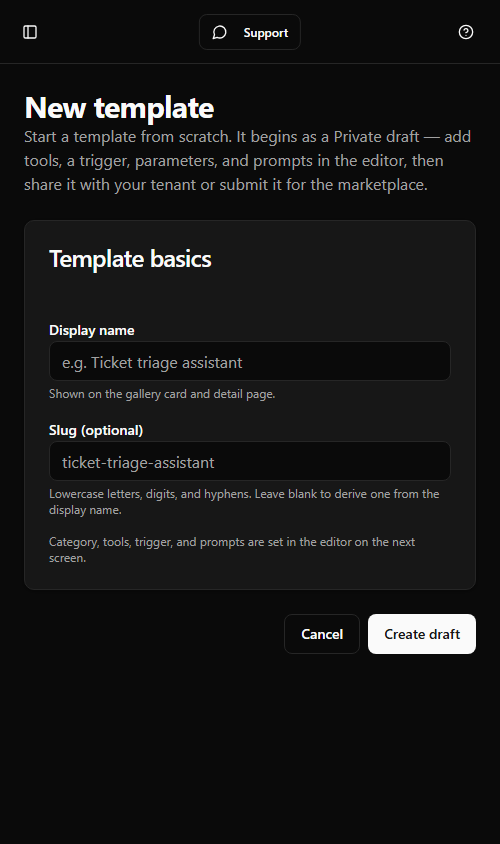
- Enter a Display name (required) and, optionally, a Slug — lowercase letters, digits, and hyphens. Leave the slug blank to derive one from the name; a conflict is reported as SJ-TEMPLATE-CREATE-CONFLICT.
- Click Create draft. You land straight in the template editor, where you set the category, tools, trigger, parameters, and prompts. The new draft starts empty and valid, so it's ready to fill in.
Save an automation as a template
- Open the automation's detail page and click Save as template in the header.
- Enter a Slug — lowercase letters, digits, and hyphens (it is lowercased for you on submit). The slug must be unique; a conflict is reported as SJ-TEMPLATE-SAVE-CONFLICT.
- Pick a Category (defaults to "General").
- Click Save as template. You land on the new template's detail page.
What is never copied. Saving as a template sanitizes the automation automatically: webhook secrets, tenant IDs, Anthropic IDs, notification emails, consent state, and run data are never copied into the template. The result starts as a Private draft, recorded as authored by you.
Edit the template draft
From your template's detail page, click Edit draft (available to your own tenant's templates only — curated built-in templates are managed by StackJack). The editor is a set of cards, each a real editor for that part of the manifest:
- Identity — display name (required), summary, category, and long description.
- Prompts — the system prompt template and description template. Use
{{parameter_name}}placeholders anywhere you want the installer to supply a value. - Tools — pick required and recommended tools from your tenant's connector tools, grouped by connector and searchable. Because you pick from the real catalog, an unknown or mistyped tool name can't be selected. Required tools are granted by default at install; recommended tools are suggested to the installer.
- Trigger and payload — the trigger type the installed automation will use (on demand, scheduled with a default cron, or webhook). For webhooks you choose the payload mode and, for Selected fields, the exact JSON paths — so a template can never ship "selected fields" with no paths. A template whose payload mode passes the full webhook body verbatim cannot be submitted to the marketplace; full-payload passthrough is limited to templates you keep private or tenant-shared.
- Parameters — add the placeholders the installer fills in. Each parameter has a name, display name, type (text, multi-line, integer, boolean, enum, or time zone), a required flag, an optional default, and a description. Enum parameters take a comma-separated list of allowed values.
- Install defaults — the model, max runtime and max credits per run, and whether installs start in dry-run mode (recommended). Installers can adjust these before deploying. The dry-run box is the one field StackJack does not hand to you: only a Curated template StackJack publishes can open an install with dry run already off, so clearing it on a template of your own changes nothing — your installers still start in dry-run mode, and can clear it themselves on the install step.
- Risk badges — tick the badges that describe honestly what the template does: read-only, writes data, destructive, credential-sensitive, or accepts webhook input. Badges are shown to installers on the gallery card and detail page; they describe the template but do not restrict its tools.
- Notes — setup notes and support notes shown to installers.
Finish with Save draft (returns to the detail page) or Save and go to publish (continues straight to the sharing and publish page).
Share, keep private, or publish
Open Share & publish from the template detail page (the Publish review button). Choose a target and act on it:
Private — the template appears only in your own template gallery. A private template is hidden from your teammates' galleries. Note that a teammate who has a direct link to the template can still open and edit it — sharing is scoped to what shows up in the gallery, not a lock. Click Make private to set it.
Tenant-shared — the template appears in every member's gallery in your tenant. Click Share with tenant to set it. Switch back to Private at any time.
Marketplace — submitted to StackJack for review and, if approved, published to all tenants. Click Run scan first; it produces two report cards:
- Policy checks — marketplace rules applied to your manifest. Each violation shows a code, a Blocked or Warn severity, and a hint for fixing it.
- Content findings — an automated scanner that looks for personal data and secret-like strings in your template's text. Each finding shows the category, severity, the field it was found in, a redacted preview, and a hint.
Then click Submit for marketplace review. The button stays disabled while the report contains any Blocked items — fix them via Edit draft, then re-run the scan. After submitting, the detail page shows a "Pending marketplace review" banner until StackJack approves or rejects it.
The current visibility is shown at the top of the page so you always know where the template stands.
Delete (archive) a template draft
To remove a template you no longer want, click Delete on its detail page, or Delete on its gallery card, and confirm. The action archives the stored template and marks it Archived; it is removed from the active gallery and cannot be installed again, but this is not a hard-delete. There is no tenant self-service restore. Any automations already installed from it are unaffected. Curated built-in templates can't be archived.
After you submit to the marketplace
- Approved — your template becomes visible in every tenant's gallery as a published template.
- Rejected — your template's detail page shows the reviewer's rejection reason (SJ-TEMPLATE-REJECTED). Edit the draft to address it and resubmit through the same publish flow.
Errors you may see
Still need help? Ask the team