Connect Kaseya Quote Manager
Kaseya Quote Manager (KQM, formerly Datto Commerce) is Kaseya's quoting and procurement platform. Connecting KQM to StackJack gives your AI assistant read-only access to quotes, your product catalog,…
Written By Christopher Scaminaci
Last updated 6 days ago
Kaseya Quote Manager (KQM, formerly Datto Commerce) is Kaseya's quoting and procurement platform. Connecting KQM to StackJack gives your AI assistant read-only access to quotes, your product catalog, customers, and orders through MCP tools (MCP is the Model Context Protocol, the open standard AI assistants use to call external tools).
Once connected, your AI can look up quotes, catalog items, customers, sales orders, purchase orders, operational data, and run analytics reports through tools with the kqm_ prefix (for example kqm_list_quotes). All KQM tools are read-only — the KQM API has no write endpoints, so your AI can never change anything in Quote Manager. See the generated Kaseya Quote Manager tool reference for the current inventory, input schemas, plan tiers, and safety notes.
Before you begin
You'll need:
- A StackJack role that can manage connectors: Owner, co-owner, or Administrator.
- A Kaseya Quote Manager login that can access the Developer API section.
The same steps below are also shown inside the portal — open Connectors, find the Kaseya Quote Manager card, and click How To Connect.
Step 1 — Generate an API key in Quote Manager
- Log in to Kaseya Quote Manager.
- In the top navigation, open My account (the profile icon) and choose Developer API.
- Generate a new API key.
- Copy the key value exactly — it is case-sensitive. There is no username or secret pair; the key alone authenticates every call.
Step 2 — Connect in StackJack
- In the StackJack portal, open Connectors from the sidebar.
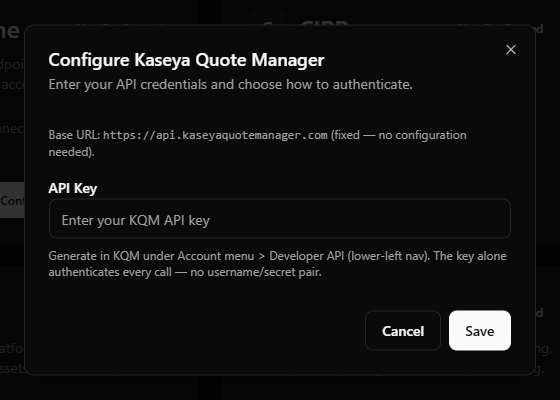
- Find the Kaseya Quote Manager card and click Configure (or How To Connect first if you want the in-portal walkthrough).
- Paste the key into the API Key field. There is no URL field — the KQM API lives at a single global endpoint (
https://api.kaseyaquotemanager.com), shown as fixed text in the dialog. - Click Save.
What happens when you save
- Your API key is stored encrypted in a secure vault — it is never stored in StackJack's database and never shown again in the portal.
- A Free plan for KQM is activated automatically, so your AI can start calling KQM tools right away.
- StackJack immediately runs a live validation call against Quote Manager. If validation fails, your credentials are still saved — fix the underlying issue (typo in the key, revoked key) and click Re-test on the card.
Permissions and data access
KQM API keys are flat — no scopes and no granular permissions. The key's account context determines what data is visible. Everything is read-only:
To browse the full KQM tool list — and to scope an AI client to a smaller tool set — open Permissions in the portal and select Kaseya Quote Manager.
Plans, tools, and usage limits
- Every KQM tool is available on the Free plan. Paid plans differ by monthly usage allowance, not by tool access. Upgrade from the KQM card on the Connectors page — current pricing is shown in the portal and at checkout.
- Each plan includes a monthly tool-call allowance; the usage bar on the connector card tracks it through your billing cycle. StackJack applies no per-minute rate limit of its own — the monthly allowance is the only StackJack-side cap.
- Quote Manager's own API limits are tight: 60 requests per minute and 20,000 requests in any 24-hour period. StackJack paces its calls towards those limits, which shapes what to expect from heavy queries (see below). Pacing is not a guarantee: the allowance belongs to your Quote Manager account, so anything else using it counts too, and a wide enough query can still be throttled. See Kaseya's current Quote Manager API guide.
Expect analytics reports to take a while
KQM's API caps page size at 100 records, so StackJack's composite analytics tools page through data on your behalf — under a 60-request-per-minute vendor budget. For large accounts:
- A full analytics report can take 2–5 minutes to complete. This is normal, not a hang.
- List tools paginate with
pageandpageSizeparameters; composite tools stop after 50 pages and mark the response_partial: truewhen the cap triggers, so your AI knows the result set was truncated.
Troubleshooting
Disconnecting
On the Kaseya Quote Manager card, click Disconnect and confirm. This deletes your stored credentials and stops all KQM tool calls.
⚠ Disconnecting does not cancel a paid KQM plan — billing continues until you cancel it separately. The plan controls only appear while the connector is connected, so end the plan before disconnecting. On a paid connector that button reads Manage on Billing and opens this connector's removal dialog on the Billing page; a legacy website subscription still reads Cancel Plan. If you've already disconnected, save your credentials again to bring the plan controls back, then end the plan.
Kaseya Quote Manager tools
kqm_ · 45 tools · Free 45
Catalog
Customers
Quotes
Sales Orders
Purchase Orders
Operations
Analytics
Still need help? Ask the team