Connect Hudu
Hudu is an IT documentation platform for passwords, assets, knowledge base articles, and procedures. Connecting Hudu to StackJack gives your AI assistant tools for companies, assets and asset layouts,…
Written By Christopher Scaminaci
Last updated 6 days ago
Hudu is an IT documentation platform for passwords, assets, knowledge base articles, and procedures. Connecting Hudu to StackJack gives your AI assistant tools for companies, assets and asset layouts, passwords, knowledge base, procedures, networks, websites and expirations, and admin data through StackJack's MCP endpoint. See the generated Hudu tool reference for the current inventory, input schemas, plan tiers, and safety notes. (MCP, the Model Context Protocol, is the open standard that lets AI assistants like Claude, ChatGPT, and Copilot call your MSP tools securely.)
Hudu is one of the simplest connectors to set up: it needs just your Hudu instance URL and a single API key.
Before you begin
- You need the Owner, co-owner, or Administrator role in StackJack to configure connectors.
- You need admin or super-admin access to Hudu (the Admin > API Keys area is admin-only).
- Know your Hudu instance URL, for example
https://yourcompany.huducloud.com(or your self-hosted address). - Connecting a connector automatically activates it on the Free plan. You can upgrade to a paid plan at any time from the Connectors page — current pricing is shown in the portal.
Tip: The same steps below are always available in-app — open Connectors, find the Hudu card, and click How To Connect.
Step 1: Create an API key in Hudu
- In Hudu, go to Admin > API Keys.
- Click + New API Key and give it a descriptive name (for example,
StackJack Integration). - Configure the key's creation-time restrictions to match what you want your AI assistant to do. Use least privilege:
- restrict the key to specific companies;
- control whether the key can access passwords;
- control whether the key can perform destructive DELETE operations;
- control whether the key can export data;
- restrict it to Magic Dash endpoints if that is the only surface required;
- configure IP whitelisting.
- Copy the generated API key promptly and store it securely — Hudu obfuscates it after 5 minutes. These controls are selected when the key is created; create a replacement key if you later need a different scope.
⚠ If you turn off password access on the key, StackJack's Hudu password tools will fail with permission errors. If you enable IP whitelisting, StackJack's servers must be on the allow list. StackJack does not publish its outbound addresses: open a support ticket to get the current addresses for your region before you enable the restriction, and ask again after a region move, because they change. If validation fails with an authorization error and you use IP whitelisting, that restriction is the first thing to check.
Step 2: Add the credentials to StackJack
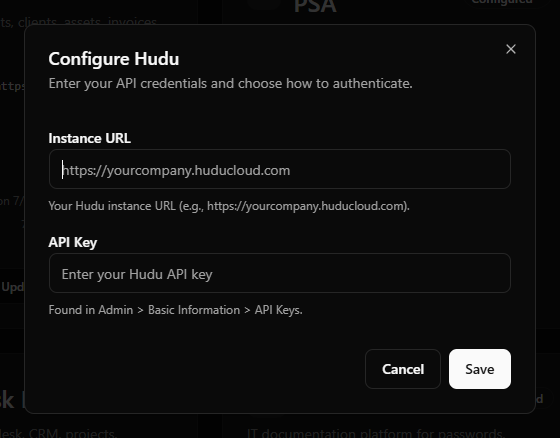
In the StackJack portal, go to Connectors and click Configure on the Hudu card.
Fill in the two fields:
Click Save.
What happens when you save
- Your API key is stored encrypted in Azure Key Vault. It is never stored in StackJack's database, and the portal never re-displays a saved key.
- StackJack immediately test-calls Hudu to validate the credentials. If validation fails or times out, your credentials are still saved and you'll see a warning — validation retries automatically in the background.
- A Free plan subscription for Hudu is activated automatically if you don't already have one.
- If validation keeps failing (three consecutive definitive failures), StackJack auto-disables the connection, emails the tenant owner, and shows Re-enable and Update Credentials buttons on the card.
What StackJack can access in Hudu
Access is governed entirely by the restrictions you set on the API key. With an unrestricted key, the tool families cover:
To narrow this, create the key with tighter restrictions in Hudu (Step 1.3) and/or limit which Hudu tools each team member and MCP client can use from StackJack's Permissions and MCP Setup pages.
Pagination and rate limits
Hudu returns list results in 1-based pages, with 25 results by default. StackJack list tools accept page and pageSize and cap a request at 1,000 results. Hudu publishes a limit of 300 requests per minute; StackJack applies the same per-tenant pacing, so a burst is slowed rather than sent all at once. Other applications using the same Hudu instance draw on the same allowance, so pacing cannot keep you under it on its own. Pacing is not a guarantee: retries are bounded, so a wide enough read can still come back throttled or time out. Narrow the read, honour any retry delay the vendor sends, and check whether a write landed before repeating it — see Retrying a failed or timed-out write.
Troubleshooting
Disconnecting
Click Disconnect on the Hudu card to delete the stored credentials from Key Vault. Any AI tools using the connector stop working immediately.
⚠ Disconnecting does not cancel a paid plan — billing continues until you cancel it separately. The plan controls only appear while the connector is connected, so end the plan before disconnecting. On a paid connector that button reads Manage on Billing and opens this connector's removal dialog on the Billing page; a legacy website subscription still reads Cancel Plan. If you've already disconnected, save your credentials again to bring the plan controls back, then end the plan.
Hudu tools
hudu_ · 156 tools · Free 65 · Pro 91
Companies
Assets
Asset Layouts
Knowledge Base
Passwords
Procedures
Networking
Websites & Expirations
Rack Storage
Flags
Lists
Integrations
Users & Groups
Admin & System
Analytics
Still need help? Ask the team