Connect ConnectWise Sell
ConnectWise Sell (formerly Quosal Sell) is ConnectWise's CPQ platform — configure-price-quote software for building and managing sales quotes and proposals. Connecting it to StackJack lets your AI…
Written By Christopher Scaminaci
Last updated 6 days ago
ConnectWise Sell (formerly Quosal Sell) is ConnectWise's CPQ platform — configure-price-quote software for building and managing sales quotes and proposals. Connecting it to StackJack lets your AI assistant work with your quoting data through MCP tools — the standardized tool calls (Model Context Protocol) that AI harnesses like Claude or ChatGPT use to act on your behalf. Once connected, your AI can list and inspect quotes and quote versions, manage quote items, tabs, customers, and terms, review recurring revenue, and look up reference data like tax codes and templates.
The ConnectWise Sell tool family uses the cwsell_ prefix. The full tool set is available on every plan — paid plans for this connector differ only in the monthly usage allowance. See the generated ConnectWise Sell tool reference for the current inventory, input schemas, plan tiers, and safety notes.
ConnectWise Sell and ConnectWise PSA are separate connectors. Sell credentials are completely independent from ConnectWise PSA (Manage) credentials. If you use both products, configure each connector on its own.
Before you begin
You will need:
- A StackJack role that can manage connectors: tenant Owner, co-owner, or Administrator. Plain Members cannot add or edit connector credentials.
- Admin access to ConnectWise Sell, so you can create an API user.
There is no URL to configure — StackJack talks to ConnectWise Sell's fixed API endpoint (sellapi.quosalsell.com).
Step 1: Collect credentials in ConnectWise Sell
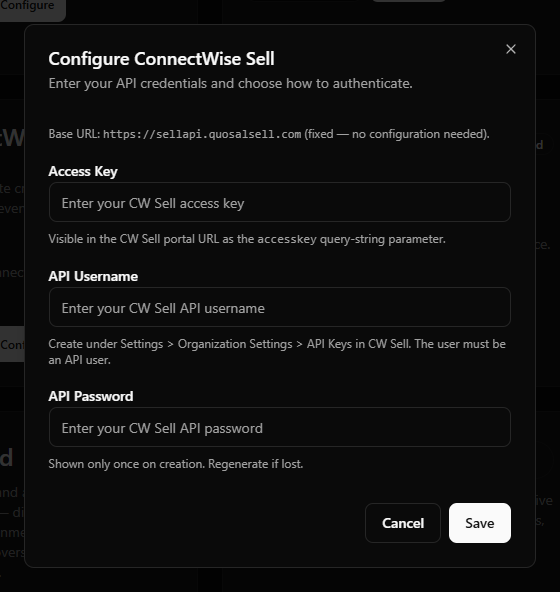
You need three values: an Access Key, an API Username, and an API Password.
- Log in to ConnectWise Sell in your browser.
- Find your Access Key. Look at the portal URL in the address bar — the Access Key (also called the site key) is visible as the
accesskeyquery-string parameter. - Create an API user. Go to Settings → Organization Settings → API Keys and create a new API user with a username and password. The user must be an API user (not a regular login).
- Copy the API Username and API Password. The password is shown only once — if you lose it, regenerate it.
Step 2: Add the credentials in StackJack
- In the StackJack portal, go to Connectors.
- Find the ConnectWise Sell card. Click How To Connect for the guided walkthrough of Step 1, or go straight to Configure.
- In the configuration dialog:
- Click Save.
What happens when you save
- Your credentials are stored encrypted in Azure Key Vault — they are never written to the StackJack database.
- StackJack immediately tests the credentials against ConnectWise Sell. If the test fails, your credentials are still saved and you'll see a "saved, but validation failed" message with the reason so you can correct it.
- A Free subscription for the ConnectWise Sell connector is created automatically, so its tools appear in your AI harness right away. Upgrade from the connector card whenever you're ready — current pricing is shown in the portal at checkout.
Health monitoring
StackJack periodically re-validates the connection. If it fails definitively three times in a row (for example, because the API user was deleted in Sell), the connector is automatically disabled and the tenant owner is emailed. The connector card then shows the error details along with Re-enable and Update Credentials buttons. (A card that is failing validation but not yet disabled shows a Re-test button instead.)
What your AI can do once connected
All ConnectWise Sell tools are available on every plan tier. The family covers:
- Quotes — list, get, update, copy, and delete quotes; work with quote versions (including fetching the latest version).
- Quote contents — items, tabs (and items by tab), customers, and terms, with create/update/replace/delete operations where the Sell API supports them.
- Recurring revenue — list recurring revenue records for reporting.
- Reference data — tax codes, templates, and Sell users (including user updates).
What actually gets returned is governed by the API user's permissions inside Sell — the AI can only see and change what that user can.
Two usage notes worth passing to whoever drives the AI:
- Update tools use JSON Patch. ConnectWise Sell update tools accept RFC 6902 JSON Patch operation arrays (a standard format describing individual changes). The AI should send the operations array as JSON rather than a partial object; capable AI harnesses handle this automatically when the tool description asks for it.
- Usage caps. Each connector subscription has a monthly tool-call allowance (currently 100 calls on Free, 5,000 on Pro, 50,000 on Business per billing cycle). There is no per-minute burst limit on your MCP calls — the monthly cap is the enforcement point. Your usage bar is on the connector card and Dashboard.
Rate limits toward ConnectWise Sell
ConnectWise does not publish a rate limit for the Sell API, so StackJack conservatively paces outbound requests at 100 requests per minute per tenant. If Sell ever responds with "too many requests", that individual call fails (the AI can simply retry it), and StackJack automatically backs off — spacing out subsequent requests with increasing delays.
Troubleshooting
Per-user access
ConnectWise Sell does not support per-user sign-in through StackJack — the connector uses one shared credential for the whole tenant, and all tool calls run as the Sell API user you configured. (Per-user connector credentials are only available for HaloPSA, NinjaOne, and N-able N-central.)
Disconnecting
Disconnect on the ConnectWise Sell card deletes the stored credentials from Key Vault, and Sell calls on that connection stop working immediately. Where the card holds several connections, the others keep working and the connector stays connected until you remove the last one.
Whether Sell's tools disappear from your AI's tool list is a separate choice rather than an automatic consequence. On the last connection of a Free connector the dialog offers to remove them, with the box selected by default. On a paid connector the tools stay listed and billing continues: disconnecting does not cancel a paid subscription. The plan controls only appear while the connector is connected, so end the plan before disconnecting. On a paid connector that button reads Manage on Billing and opens this connector's removal dialog on the Billing page; a legacy website subscription still reads Cancel Plan. If you've already disconnected, save your credentials again to bring the plan controls back, then end the plan. See Disconnecting a Connector for what else a removal reaches.
The term 'ConnectWise' is a trademark of ConnectWise, LLC. This application uses the ConnectWise API but is not endorsed or certified by ConnectWise.
ConnectWise Sell tools
cwsell_ · 29 tools · Free 29
Quotes
Quote Items
Quote Tabs
Quote Customers
Quote Terms
Recurring Revenue
Reference Data
Users
Still need help? Ask the team