Connect Telivy
Telivy is a security platform for MSPs covering external attack-surface scans, deep-scan risk assessments, Microsoft 365 / Google Workspace MFA analysis, PII discovery, and breach data. Connecting it…
Written By Christopher Scaminaci
Last updated 6 days ago
Telivy is a security platform for MSPs covering external attack-surface scans, deep-scan risk assessments, Microsoft 365 / Google Workspace MFA analysis, PII discovery, and breach data. Connecting it to StackJack lets your AI assistant work with your Telivy assessments through MCP tools — the standardized tool calls (Model Context Protocol) that AI harnesses like Claude or ChatGPT use to act on your behalf. Once connected, your AI can review scans and risk assessments, pull findings, devices, breach data and PII summaries, and download generated reports.
The Telivy tool family uses the telivy_ prefix. The full tool set is available on every plan — paid plans for this connector differ only in the monthly usage allowance. See the generated Telivy tool reference for the current inventory, input schemas, plan tiers, and safety notes.
Before you begin
You will need:
- A StackJack role that can manage connectors: tenant Owner, co-owner, or Administrator. Plain Members cannot add or edit connector credentials.
- Access to your Telivy MSP portal account.
There is no URL or region to configure — Telivy is a global SaaS and StackJack talks to its fixed API endpoint (api-v1.telivy.com).
Read this before connecting: the API key sees everything. A Telivy API key grants access to all assessments visible to your MSP agent account — there is no per-key role restriction. And Telivy responses contain genuinely sensitive material: leaked credentials from breach data, PII counts, and M365 / Google Workspace user inventories, which StackJack passes through to your AI verbatim. Connect Telivy only if the team members whose AI sessions will use it are people you'd already trust with full visibility in the Telivy portal, and make sure your tenant's tool permissions reflect that.
Step 1: Get your API key from Telivy
- Sign in to your Telivy MSP portal at
portal.telivy.com. - Go to Account → Integrations.
- Copy the API key shown on the Integrations page. If no key exists yet, generate one there.
- Treat the key like a password — anyone holding it can read all your scans, devices, and PII data.
Telivy also documents this location in its current partner-integration example.
Step 2: Add the key in StackJack
- In the StackJack portal, go to Connectors.
- Find the Telivy card. Click How To Connect for the guided walkthrough of Step 1, or go straight to Configure.
- In the configuration dialog:
- Click Save.
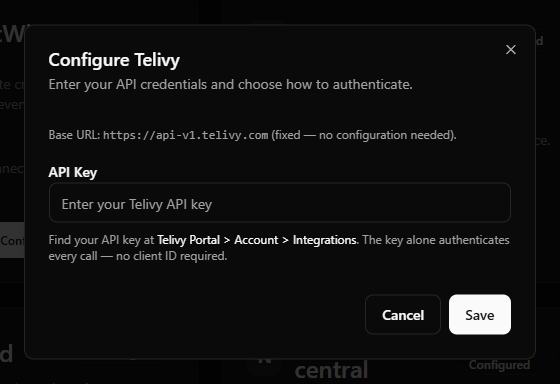
What happens when you save
- Your API key is stored encrypted in Azure Key Vault — it is never written to the StackJack database.
- StackJack immediately tests the key against Telivy. If the test fails, the key is still saved and you'll see a "saved, but validation failed" message with the reason so you can correct it.
- A Free subscription for the Telivy connector is created automatically, so its tools appear in your AI harness right away. Upgrade from the connector card whenever you're ready — current pricing is shown in the portal at checkout.
Health monitoring
StackJack periodically re-validates the connection. If it fails definitively three times in a row (for example, because the key was regenerated in Telivy), the connector is automatically disabled and the tenant owner is emailed. The connector card then shows the error details along with Re-enable and Update Credentials buttons. (A card that is failing validation but not yet disabled shows a Re-test button instead.)
What your AI can do once connected
All Telivy tools are available on every plan tier. The family covers two resource groups plus general helpers:
- External scans — attack-surface scan runs, their findings, breach data, devices, and reports.
- Risk assessments — deep-scan assessments and their devices (each device carries its own deep-scan findings, encryption status, open ports, and browser-saved-password inventory), plus PII summaries, scan status, monitoring settings, reports, and M365 / Google Workspace user and MFA analysis. (Breach data is surfaced through the external-scan tools.)
- General — agent versions, finding-slug lookups, and risk progress.
Two usage notes worth passing to whoever drives the AI:
- Report downloads are time-limited links. Report tools (PDF/DOCX/CSV/XLSX) don't return the file inline — the binary is uploaded to StackJack's storage and the tool returns a read-only download link that expires after 3 minutes. The AI (or you) must fetch the file within that window; if it expires, just run the report tool again.
- Usage caps. Each connector subscription has a monthly tool-call allowance (currently 100 calls on Free, 5,000 on Pro, 50,000 on Business per billing cycle). There is no per-minute burst limit on your MCP calls — the monthly cap is the enforcement point. Your usage bar is on the connector card and Dashboard.
Rate limits toward Telivy
Telivy does not publish an API rate limit, so StackJack conservatively paces outbound requests to Telivy at 60 requests per minute per tenant.
Sensitive data handling
StackJack follows a strict passthrough model: connector responses go to your AI exactly as the vendor returned them, with nothing added or stripped. For Telivy this means breach records (including leaked credentials), PII summaries, and user inventories flow into the AI conversation when those tools are called. Anything an AI harness receives may be retained by that harness per its own policies — so scope which team members and MCP clients can call Telivy tools using StackJack's tool permissions, and treat Telivy tool output as confidential data in your own handling policies.
Troubleshooting
Per-user access
Telivy does not support per-user sign-in through StackJack — the connector uses one shared API key for the whole tenant, and every tool call sees everything that key sees. (Per-user connector credentials are only available for HaloPSA, NinjaOne, and N-able N-central.)
Disconnecting
Disconnect on the Telivy card deletes the stored key from Key Vault, and Telivy calls on that connection stop working immediately. Where the card holds several connections, the others keep working and the connector stays connected until you remove the last one.
Whether Telivy's tools disappear from your AI's tool list is a separate choice rather than an automatic consequence. On the last connection of a Free connector the dialog offers to remove them, with the box selected by default. On a paid connector the tools stay listed and billing continues: disconnecting does not cancel a paid subscription. The plan controls only appear while the connector is connected, so end the plan before disconnecting. On a paid connector that button reads Manage on Billing and opens this connector's removal dialog on the Billing page; a legacy website subscription still reads Cancel Plan. If you've already disconnected, save your credentials again to bring the plan controls back, then end the plan. See Disconnecting a Connector for what else a removal reaches.
If you're disconnecting for security reasons, also regenerate the key in Telivy so the old value is dead everywhere.
Telivy tools
telivy_ · 28 tools · Free 28
General
External Scans
Risk Assessments
Still need help? Ask the team