Connect N-able N-central
N-able N-central is a remote monitoring and management (RMM) platform. Connecting it to StackJack gives your AI assistant ncentral_ MCP tools covering devices and customers, scheduled tasks,…
Written By Christopher Scaminaci
Last updated 3 days ago
N-able N-central is a remote monitoring and management (RMM) platform. Connecting it to StackJack gives your AI assistant ncentral_ MCP tools covering devices and customers, scheduled tasks, maintenance windows, custom properties, active issues, asset and lifecycle information, and more. See the generated N-able N-central tool reference for the current inventory, input schemas, plan tiers, and safety notes. MCP (Model Context Protocol) tools are the standardized commands an AI assistant can call through StackJack.
N-central is unusual among StackJack connectors in two ways:
- It authenticates with a User-API Token (JWT) instead of a simple API key.
- It supports per-user attribution: each team member can supply their own token so that actions their AI performs show up under their identity in N-central's audit trail.
How StackJack authenticates to N-central
Your N-central credential is a User-API Token — a JSON Web Token (JWT) that N-central generates for one specific N-central user. StackJack exchanges that token at runtime for a short-lived access token and keeps the session refreshed automatically; you never need to re-enter the token on a schedule.
Two things follow from this design:
- The token inherits the N-central user's role and visibility. Everything your AI can see or change in N-central is bounded by what that user can see or change.
- The token is the recovery secret. If it is revoked or regenerated inside N-central, StackJack's refreshed session eventually becomes invalid and you must paste the new token into StackJack.
Two ways to run the connector
Most teams start with Mode 1 and add Mode 2 for members who need their AI activity attributed to them individually. The two modes coexist: when a member has saved their own token, their AI traffic uses it; everyone else's traffic uses the shared token.
Per-user tokens require an active subscription of any tier — the automatically-created Free subscription counts. There is no paid-plan requirement for per-user attribution.
Before you begin
- In StackJack: you need a role that can manage connectors (tenant Owner, a co-owner, or an Administrator) for the shared setup. For a per-user token (Mode 2), any member can act for themselves once the connector is set up and assigned to them.
- In N-central: you need to sign in as a user who can reach Administration → User Management. Create dedicated API-only identities instead of using interactive human accounts. N-central requires MFA/Two-Factor Authentication to be disabled for JWT-only API access; keeping that constraint on identities that cannot sign in to the UI avoids weakening a person's normal login.
- Your N-central server URL — every MSP has their own (for example
https://your-ncentral.example.com). There is no regional default.
Step 1 — Generate a User-API Token (JWT) in N-central
- Sign in to your N-central server with User Management permissions and navigate to Administration → User Management → Users.
- Create a dedicated user for API access. For shared Mode 1, use one service identity. For Mode 2, create a distinct API identity named for each StackJack member so audit attribution stays unambiguous.
- Assign the least-privilege Role and Access Group covering only the customers, sites, devices, and actions that identity needs.
- Under User Details → User Information → Access, turn off Use Two-Factor Authentication as required by N-central's JWT-only API flow, then save.
- Reopen the user, switch to API Access, and select API-Only User so the identity cannot sign in to the N-central UI.
- Click GENERATE JSON WEB TOKEN and copy the token. If you later regenerate it, N-central revokes the previous JWT plus its access and refresh tokens; revocation can take up to five minutes.
See N-able's current API-access prerequisites, API-only user procedure, and API role-permission matrix.
Step 2 — Add the shared credential in StackJack
- In the StackJack portal, open Connectors.
- Find the N-able N-central card. Click How To Connect for the same steps inline, or Configure to enter the credential.
- Enter your N-central Server URL. It must start with
https://— use the base URL exactly as you would in a browser. - Paste the JWT into the User-API Token (JWT) field.
- Click Save.
When you edit an already-connected N-central credential later, you can leave the token field blank to keep the current token — useful when only the server URL changes.
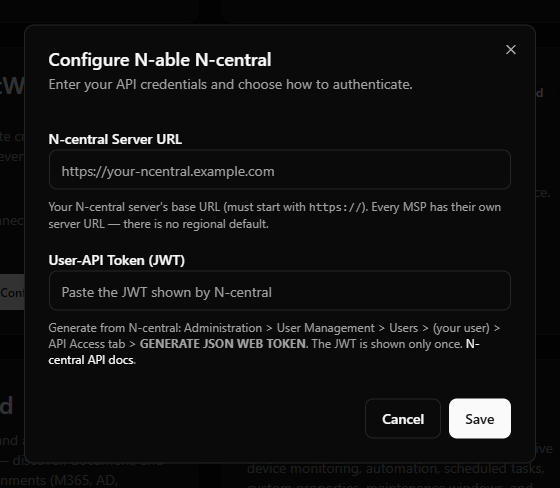
What happens when you save
- The token is stored encrypted in Azure Key Vault — never in the StackJack database, and it is never shown back to you.
- If this is the first time you configure N-central, a Free-tier subscription for the connector is created automatically so its Free tools work right away.
- StackJack immediately live-validates the credential against your N-central server. Validation never blocks the save: you'll either see a success confirmation or a "saved but validation failed" warning with the reason. If validation can't complete (for example, a timeout), it retries automatically in the background.
- The connector card shows the current connection and validity status from then on.
Per-user attribution (Mode 2)
Each team member who wants their AI activity attributed to their own N-central identity supplies their own token:
- Generate a JWT for the dedicated API-only N-central identity assigned to you, following Step 1 above. Do not disable MFA on your normal interactive N-central account just to use StackJack.
- In the StackJack portal, open the Connectors page and find the N-central card in your Your personal sign-ins section.
- On the N-able N-central card, click Set JWT. (If you've saved a token before, the button reads Update JWT instead.)
- In the dialog, the server URL is pre-filled from the shared credential — adjust it only if your admin tells you to. Paste your JWT and click Save.
- StackJack validates the token immediately and confirms, or warns you if the token didn't validate.
Once saved, the card also offers a Test button that re-checks your saved token against N-central at any time, without re-pasting it.
Requirements and notes:
- Per-user tokens require an active N-central connector subscription of any tier. If there is none, the save is rejected with a clear message — ask your admin to set up the connector first.
- The N-central connector must be among the tools assigned to you for the card to appear in your personal sign-ins.
- If a member can't self-serve, StackJack support can enter a token on a member's behalf — contact support.
Which N-central permissions do the tools need
The token inherits the role and visibility of the N-central user it was generated for:
- Read tools work with any user role that has at least read access to the relevant entities.
- Full read-write coverage (devices, customers, scheduled tasks, maintenance windows, active issues) typically needs the Administrator role in N-central.
The tool families and the access they exercise:
Use the Permissions page in the StackJack portal to see, per selected tool, exactly which access your N-central user needs.
Plans and available tools
- Free includes the read tools, including StackJack's Search and Get-All (automatic pagination walking) convenience tools.
- Pro adds the write tools plus two more StackJack convenience families: Premium Reports and Composite Overviews.
- Business offers the same tool set as Pro with a higher monthly call quota.
All four convenience families (Search, Get-All, Premium Reports, Composite Overviews) are built by StackJack on top of N-central's standard list endpoints — N-central itself has no native search or reports API.
Per-user attribution is available whenever the connector subscription is active, on any tier. Current pricing and quotas are shown in the portal's Billing page and at checkout.
Rotating or replacing the token
Regenerating the User-API Token inside N-central invalidates the previous token for that user and breaks the refreshed session StackJack holds. The connector will surface a clear re-authorization prompt when this happens. To restore access:
- Shared credential: open Connectors → N-able N-central → Configure and paste the new token.
- Per-user credential: open the Connectors page → personal sign-ins and use Update JWT.
N-central applies endpoint-specific concurrent-call limits, currently ranging from 3 to 50 calls, and returns 429 when an endpoint is saturated. StackJack also applies an aggregate per-tenant pace and honors backoff responses. If a wide report is throttled, retry it after a short delay rather than starting overlapping crawls.
Troubleshooting
N-able N-central tools
ncentral_ · 104 tools · Free 70 · Pro 34
Server Info
Devices
Organization Units
Device Filters
Custom Properties
Scheduled Tasks
Maintenance Windows
Users
User Roles
Access Groups
Job Statuses
Active Issues
Registration Tokens
Device Tasks
PSA
Walk Pagination (Get All)
Search & Filter
Composite Overviews
Task Type Wrappers
Premium Reports
Still need help? Ask the team