Connect Datto RMM
Datto RMM is a remote monitoring and management platform for MSPs. Connecting Datto RMM to StackJack gives your AI assistant tools for sites, devices, alerts, jobs, audits, variables, and activity…
Written By Christopher Scaminaci
Last updated 6 days ago
Datto RMM is a remote monitoring and management platform for MSPs. Connecting Datto RMM to StackJack gives your AI assistant tools for sites, devices, alerts, jobs, audits, variables, and activity logs through StackJack's MCP endpoint. See the generated Datto RMM tool reference for the current inventory, input schemas, plan tiers, and safety notes. (MCP, the Model Context Protocol, is the open standard that lets AI assistants like Claude, ChatGPT, and Copilot call your MSP tools securely.)
Datto RMM uses an API key pair (API Key + API Secret Key) generated under a specific Datto RMM user. That user owns the key lifecycle: deactivating or deleting the user invalidates the pair. On Datto RMM 15.1 and later, the key's separate API Security Level and API Component Level control its reach; do not assume the user's ordinary interactive role or site visibility confines API access.
Before you begin
- You need the Owner, co-owner, or Administrator role in StackJack to configure connectors.
- You need administrator access to Datto RMM (to enable API access and generate keys).
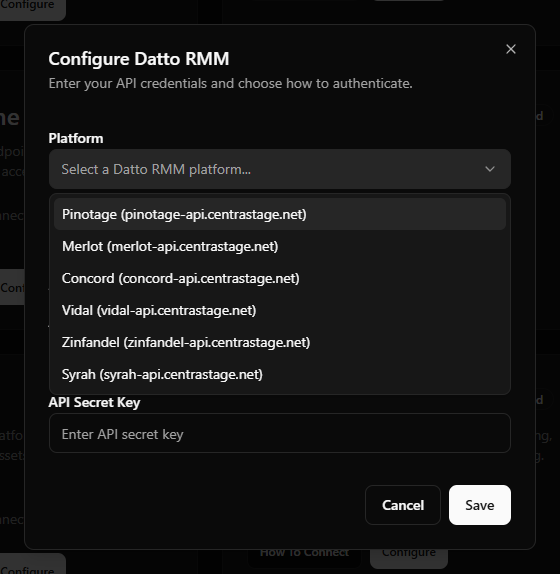
- Know which platform (pod) your Datto RMM account runs on: Pinotage, Merlot, Concord, Vidal, Zinfandel, or Syrah. If you're not sure, check the web address you use to sign in to Datto RMM — it begins with the platform name (for example, a Merlot account signs in at an address starting with
merlot.). - Connecting a connector automatically activates it on the Free plan. You can upgrade to a paid plan at any time from the Connectors page — current pricing is shown in the portal.
Tip: The same steps below are always available in-app — open Connectors, find the Datto RMM card, and click How To Connect.
Step 1: Generate API keys in Datto RMM
- Log in to Datto RMM as an administrator.
- Navigate to Setup > Global Settings > Access Control and enable the API Access toggle for the account.
- Navigate to Setup > Users and select a dedicated active user to own the StackJack key pair. The user is a lifecycle owner, not a reliable API permission boundary.
⚠ Configure the API-specific controls. On Datto RMM 15.1 and later, select the least-privilege API Security Level and API Component Level for this key. Datto added these specifically to restrict API access independently of ordinary user Security Level memberships. Older Datto releases documented account-wide API access; if these fields are absent, upgrade or confirm the effective scope with Datto before connecting.
- Confirm the API Security Level covers the sites, devices, and operations you intend to expose. Confirm the API Component Level permits only the components/jobs you intend agents to run.
- Click Generate API Keys on the user. Datto RMM returns an API Key (access key) and an API Secret Key.
- Copy both immediately.
⚠ The API Secret Key is shown exactly once — it cannot be retrieved later. If you lose it, regenerate the keys (which invalidates the old pair).
Step 2: Add the credentials to StackJack
In the StackJack portal, go to Connectors and click Configure on the Datto RMM card.
Fill in the fields:
Click Save.
⚠ The platform must match where the keys were generated. A Merlot key fails authentication against Pinotage or Zinfandel, even though all are valid Datto RMM platforms.
What happens when you save
- Your key pair is stored encrypted in Azure Key Vault. It is never stored in StackJack's database, and the portal never re-displays a saved secret.
- StackJack immediately test-calls Datto RMM to validate the credentials. If validation fails or times out, your credentials are still saved and you'll see a warning — validation retries automatically in the background.
- A Free plan subscription for Datto RMM is activated automatically if you don't already have one.
- If validation keeps failing (three consecutive definitive failures), StackJack auto-disables the connection, emails the tenant owner, and shows Re-enable and Update Credentials buttons on the card.
What StackJack can access in Datto RMM
Everything is bounded by the API-specific controls on the key (on Datto RMM 15.1+). StackJack's own plan tier and per-tool selections are a second gate. The tool families cover:
Pagination, tokens, and rate limits
Troubleshooting
Disconnecting
Click Disconnect on the Datto RMM card to delete the stored credentials from Key Vault. Any AI tools using the connector stop working immediately.
⚠ Disconnecting does not cancel a paid plan — billing continues until you cancel it separately. The plan controls only appear while the connector is connected, so end the plan before disconnecting. On a paid connector that button reads Manage on Billing and opens this connector's removal dialog on the Billing page; a legacy website subscription still reads Cancel Plan. If you've already disconnected, save your credentials again to bring the plan controls back, then end the plan.
Datto RMM tools
datto_ · 58 tools · Free 38 · Pro 20
Account
Sites
Devices
Alerts
Audit
Jobs
Filters
Components
Variables
Activity Logs
System
Analytics
Still need help? Ask the team