Your first sign-in: password, MFA, and landing in the portal
StackJack accounts created through free signup, a paid purchase, or a team invite start with a password-setup email, a sign-in at the portal, and required multi-factor authentication (MFA) enrollment.…
Written By Christopher Scaminaci
Last updated 3 days ago
StackJack accounts created through free signup, a paid purchase, or a team invite start with a password-setup email, a sign-in at the portal, and required multi-factor authentication (MFA) enrollment. If your organization uses a federated identity provider instead, its sign-in and MFA policy can replace the local password flow. This page walks through the local-account path.
StackJack sign-in is powered by a dedicated identity service (Zitadel), so the password and MFA screens are hosted on identity pages rather than inside the portal itself. That is normal and expected.
Step 1: Set your password
- Open the email you received when your account was created. On every path, the actual setup link arrives in a password-reset-style email from a
zitadel.cloudaddress — that is StackJack's identity service, and it is the expected sender:- Free in-app signup → the password-setup email, plus a welcome email from StackJack.
- Paid purchase on the StackJack website (or an older free signup made through our previous storefront) → the password-setup email, plus a welcome email from StackJack.
- Team invite → the password-setup email, plus a StackJack invite email telling you who invited you and what to do (the invite email itself points you at the password-setup email).
- Select the setup link in the password-setup email and choose a password on the identity page that opens.
- Didn't get the email? Go to
https://portal.stackjack.io, start signing in with your email address, and use Forgot password. This works as a full substitute for a lost or undelivered setup email.
Step 2: Sign in to the portal
- Go to
https://portal.stackjack.io. - You are redirected to the StackJack sign-in page. Enter your email address and the password you just set.
Step 3: Enroll in multi-factor authentication (required for local accounts)
MFA is enforced for locally authenticated portal users — you cannot finish the local sign-in flow without it. Users who sign in through a configured Microsoft Entra ID, Google Workspace, Okta, or other identity provider follow that provider's authentication and MFA controls instead.
For a local account, the current StackJack identity policy supports authenticator-app TOTP, passkeys, one-time email codes, and recovery codes. The exact choices shown depend on your device and the factors already registered. An authenticator app is the most familiar path:
- Choose TOTP (Authenticator App) when prompted.
- Scan the QR code with Google Authenticator, Microsoft Authenticator, 1Password, or a compatible app.
- Enter the 6-digit code the app shows to confirm enrollment.
- Save any recovery codes the identity page offers somewhere secure and separate from the device.
- From now on, local sign-ins ask for a current second factor in addition to your password.
If you lose access to your MFA device, contact your account owner or support@stackjack.io.
Step 4: Land in the portal
After MFA, you arrive at the portal Dashboard. What happens next depends on who you are:
- Brand-new account owner — the setup wizard opens automatically to connect your AI assistant and your first MSP tool.
- Invited team member — your invitation is accepted automatically the moment you first sign in; there is no separate "accept invite" step. If your workspace already has an MSP tool connected, the wizard opens in a shorter member version focused on connecting your AI assistant; if not, the Dashboard shows a note to ask your account owner instead.
- Returning user — you go straight to the Dashboard.
Sessions and signing out
- Your portal session lasts 8 hours of activity (it extends while you use the portal) and then requires a fresh sign-in.
- Sign out any time with Sign out at the bottom of the left sidebar. This signs you out of both the portal and the identity session.
- If your session ends while a portal tab sits open (for example overnight, or while StackJack updates), the tab can show You're signed out with a Sign in button. Sign in, and you go straight back to the page you were on.
If sign-in fails
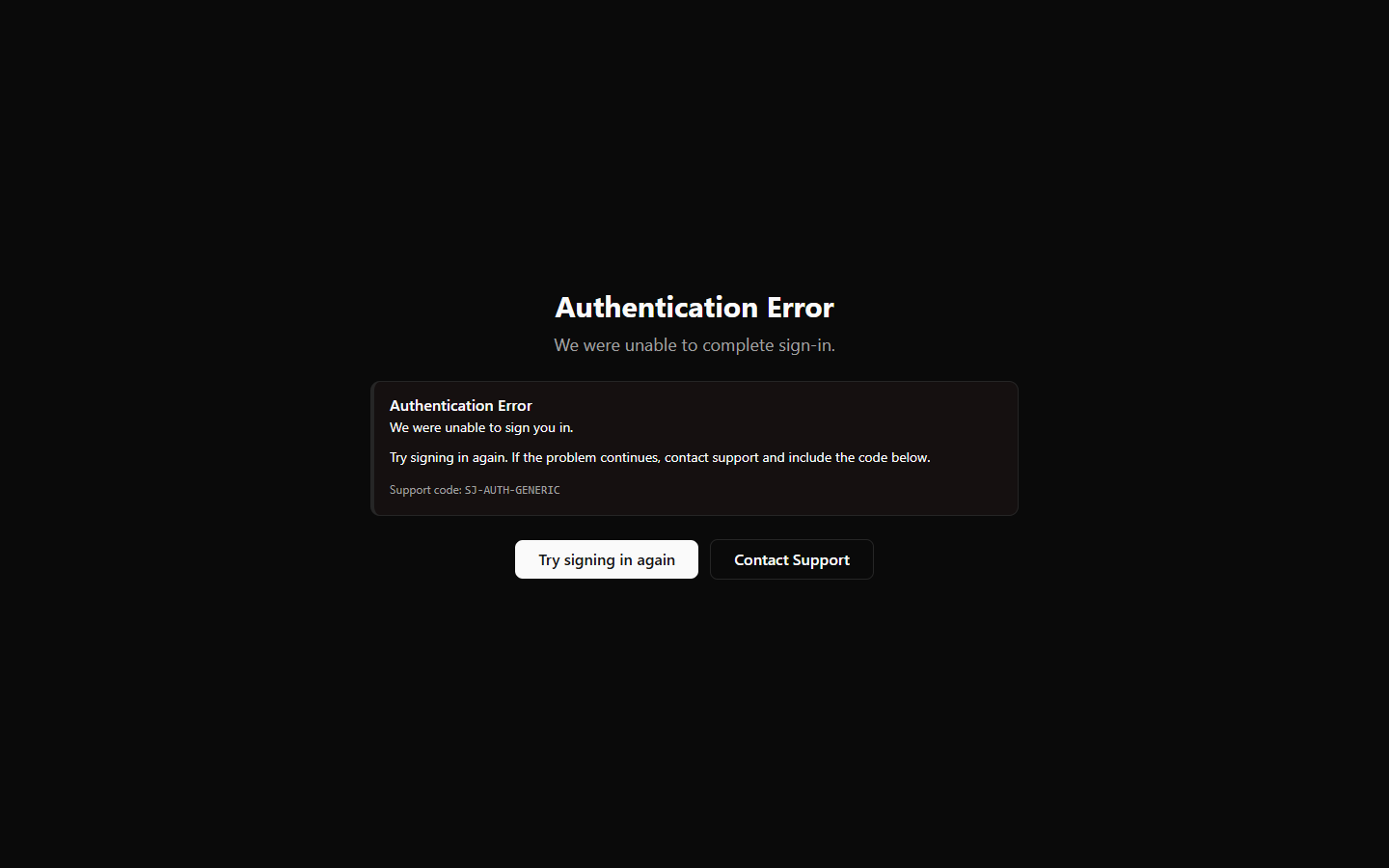
- A failed sign-in redirect lands on an Authentication Error page with a short explanation, a Try signing in again button, and a support code beginning
SJ-AUTH-. Include that code if you contact support — it identifies exactly what failed. - If you can sign in but see a full-page notice instead of the Dashboard (for example "Awaiting Approval", "Access Revoked", "No Tools Assigned", or "No StackJack Account Found"), your identity is fine but your workspace access needs attention. The notice includes a support code and a pre-filled support email link; your account owner (or any workspace manager — co-owner or Administrator) can resolve most of these from the Team page.
Next step
Continue to The first-login setup wizard.
Still need help? Ask the team